







Question: Create and run a query that displays all employees from the employee table who have the title Senior Sales Associate. This requires that you join
Create and run a query that displays all employees from the employee table who have the title Senior Sales Associate. This requires that you join related tables and select columns from all them but display only some of the columns. In the dynaset display each qualifying employees last name, gender, and city, and state where they work (arrange columns left to right in this way). Sort the dynaset in ascending order by state and then by last name within each state group. Assign aliases to the column as follows: Name, Gender, Work City, and Work State. Optimize the dynaset column widths.
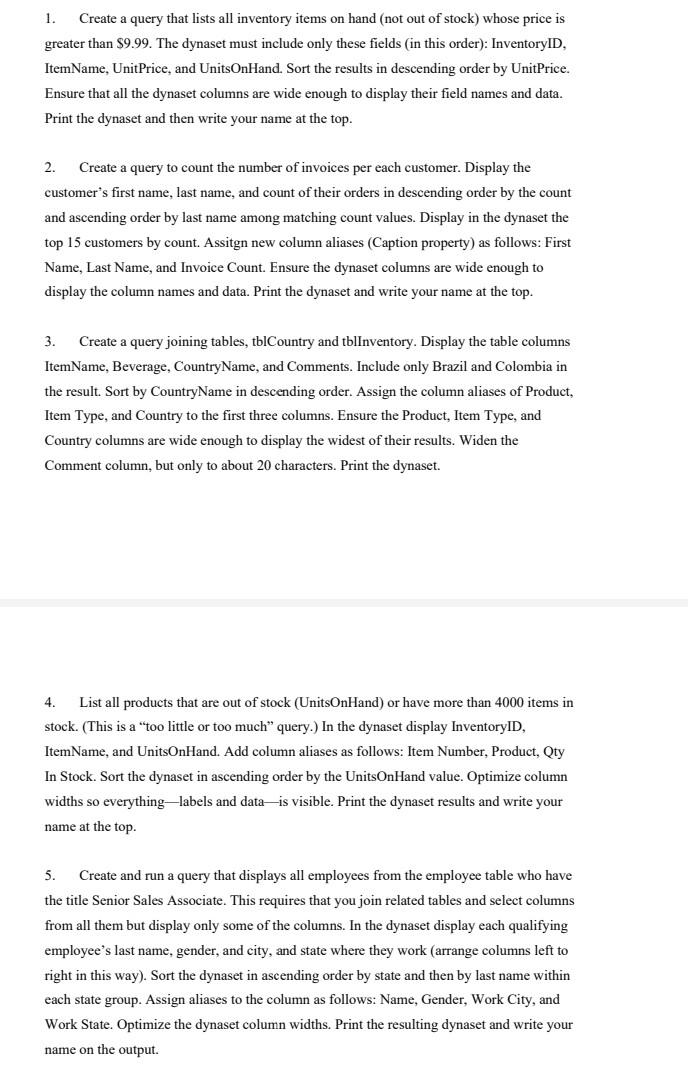
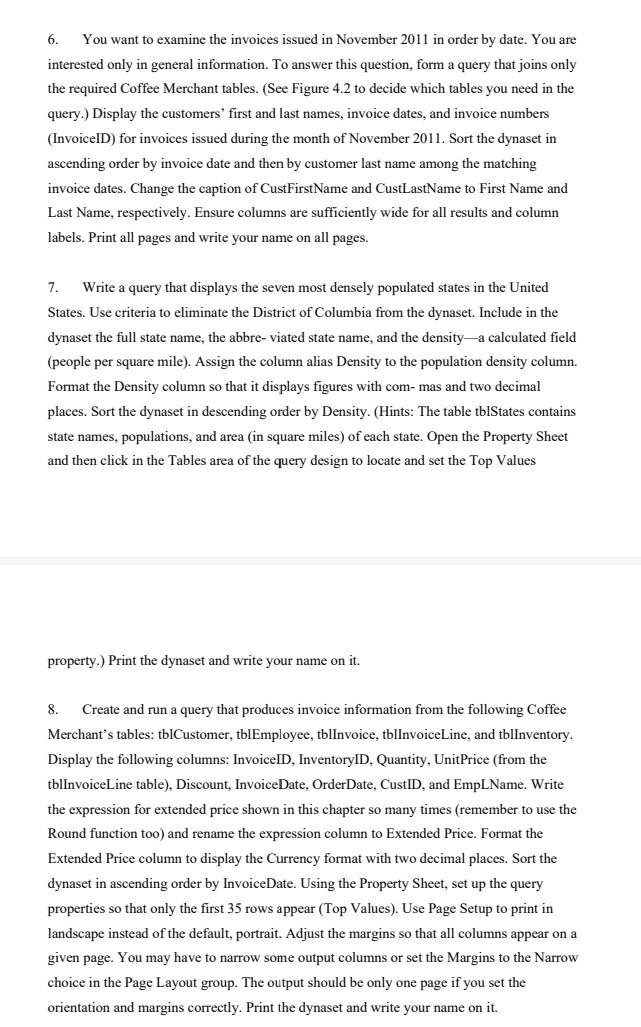
1. Create a query that lists all inventory items on hand (not out of stock) whose price is greater than $9.99. The dynaset must include only these fields (in this order): InventoryID, ItemName, UnitPrice, and UnitsOnHand. Sort the results in descending order by UnitPrice. Ensure that all the dynaset columns are wide enough to display their field names and data. Print the dynaset and then write your name at the top. 2. Create a query to count the number of invoices per each customer. Display the customer's first name, last name, and count of their orders in descending order by the count and ascending order by last name among matching count values. Display in the dynaset the top 15 customers by count. Assitgn new column aliases (Caption property) as follows: First Name, Last Name, and Invoice Count. Ensure the dynaset columns are wide enough to display the column names and data. Print the dynaset and write your name at the top. 3. Create a query joining tables, tblCountry and tblinventory. Display the table columns ItemName, Beverage, CountryName, and Comments. Include only Brazil and Colombia in the result. Sort by CountryName in descending order. Assign the column aliases of Product, Item Type, and Country to the first three columns. Ensure the Product, Item Type, and Country columns are wide enough to display the widest of their results. Widen the Comment column, but only to about 20 characters. Print the dynaset. 4. List all products that are out of stock (UnitsOnHand) or have more than 4000 items in stock. (This is a "too little or too much" query.) In the dynaset display InventoryID, ItemName, and UnitsOnHand. Add column aliases as follows: Item Number, Product, Qty In Stock. Sort the dynaset in ascending order by the UnitsOnHand value. Optimize column widths so everything - labels and data- is visible. Print the dynaset results and write your name at the top. 5. Create and run a query that displays all employees from the employee table who have the title Senior Sales Associate. This requires that you join related tables and select columns from all them but display only some of the columns. In the dynaset display each qualifying employee's last name, gender, and city, and state where they work (arrange columns left to right in this way). Sort the dynaset in ascending order by state and then by last name within each state group. Assign aliases to the column as follows: Name, Gender, Work City, and Work State. Optimize the dynaset column widths. Print the resulting dynaset and write your name on the output. 6. You want to examine the invoices issued in November 2011 in order by date. You are interested only in general information. To answer this question, form a query that joins only the required Coffee Merchant tables. (See Figure 4.2 to decide which tables you need in the query.) Display the customers' first and last names, invoice dates, and invoice numbers (InvoiceID) for invoices issued during the month of November 2011. Sort the dynaset in ascending order by invoice date and then by customer last name among the matching invoice dates. Change the caption of CustFirstName and CustLastName to First Name and Last Name, respectively. Ensure columns are sufficiently wide for all results and column labels. Print all pages and write your name on all pages. 7. Write a query that displays the seven most densely populated states in the United States. Use criteria to eliminate the District of Columbia from the dynaset. Include in the dynaset the full state name, the abbre-viated state name, and the density-a calculated field (people per square mile). Assign the column alias Density to the population density column. Format the Density column so that it displays figures with com- mas and two decimal places. Sort the dynaset in descending order by Density. (Hints: The table tblStates contains state names, populations, and area (in square miles) of each state. Open the Property Sheet and then click in the Tables area of the query design to locate and set the Top Values property.) Print the dynaset and write your name on it. 8. Create and run a query that produces invoice information from the following Coffee Merchant's tables: tblCustomer, tblEmployee, tblinvoice, tblinvoiceLine, and tblinventory. Display the following columns: InvoiceID, InventoryID, Quantity, UnitPrice (from the tblinvoiceLine table), Discount, InvoiceDate, OrderDate, CustID, and EmpLName. Write the expression for extended price shown in this chapter so many times (remember to use the Round function too) and rename the expression column to Extended Price. Format the Extended Price column to display the Currency format with two decimal places. Sort the dynaset in ascending order by InvoiceDate. Using the Property Sheet, set up the query properties so that only the first 35 rows appear (Top Values). Use Page Setup to print in landscape instead of the default, portrait. Adjust the margins so that all columns appear on a given page. You may have to narrow some output columns or set the Margins to the Narrow choice in the Page Layout group. The output should be only one page if you set the orientation and margins correctly. Print the dynaset and write your name on it. 1. Create a query that lists all inventory items on hand (not out of stock) whose price is greater than $9.99. The dynaset must include only these fields (in this order): InventoryID, ItemName, UnitPrice, and UnitsOnHand. Sort the results in descending order by UnitPrice. Ensure that all the dynaset columns are wide enough to display their field names and data. Print the dynaset and then write your name at the top. 2. Create a query to count the number of invoices per each customer. Display the customer's first name, last name, and count of their orders in descending order by the count and ascending order by last name among matching count values. Display in the dynaset the top 15 customers by count. Assitgn new column aliases (Caption property) as follows: First Name, Last Name, and Invoice Count. Ensure the dynaset columns are wide enough to display the column names and data. Print the dynaset and write your name at the top. 3. Create a query joining tables, tblCountry and tblinventory. Display the table columns ItemName, Beverage, CountryName, and Comments. Include only Brazil and Colombia in the result. Sort by CountryName in descending order. Assign the column aliases of Product, Item Type, and Country to the first three columns. Ensure the Product, Item Type, and Country columns are wide enough to display the widest of their results. Widen the Comment column, but only to about 20 characters. Print the dynaset. 4. List all products that are out of stock (UnitsOnHand) or have more than 4000 items in stock. (This is a "too little or too much" query.) In the dynaset display InventoryID, ItemName, and UnitsOnHand. Add column aliases as follows: Item Number, Product, Qty In Stock. Sort the dynaset in ascending order by the UnitsOnHand value. Optimize column widths so everything - labels and data- is visible. Print the dynaset results and write your name at the top. 5. Create and run a query that displays all employees from the employee table who have the title Senior Sales Associate. This requires that you join related tables and select columns from all them but display only some of the columns. In the dynaset display each qualifying employee's last name, gender, and city, and state where they work (arrange columns left to right in this way). Sort the dynaset in ascending order by state and then by last name within each state group. Assign aliases to the column as follows: Name, Gender, Work City, and Work State. Optimize the dynaset column widths. Print the resulting dynaset and write your name on the output. 6. You want to examine the invoices issued in November 2011 in order by date. You are interested only in general information. To answer this question, form a query that joins only the required Coffee Merchant tables. (See Figure 4.2 to decide which tables you need in the query.) Display the customers' first and last names, invoice dates, and invoice numbers (InvoiceID) for invoices issued during the month of November 2011. Sort the dynaset in ascending order by invoice date and then by customer last name among the matching invoice dates. Change the caption of CustFirstName and CustLastName to First Name and Last Name, respectively. Ensure columns are sufficiently wide for all results and column labels. Print all pages and write your name on all pages. 7. Write a query that displays the seven most densely populated states in the United States. Use criteria to eliminate the District of Columbia from the dynaset. Include in the dynaset the full state name, the abbre-viated state name, and the density-a calculated field (people per square mile). Assign the column alias Density to the population density column. Format the Density column so that it displays figures with com- mas and two decimal places. Sort the dynaset in descending order by Density. (Hints: The table tblStates contains state names, populations, and area (in square miles) of each state. Open the Property Sheet and then click in the Tables area of the query design to locate and set the Top Values property.) Print the dynaset and write your name on it. 8. Create and run a query that produces invoice information from the following Coffee Merchant's tables: tblCustomer, tblEmployee, tblinvoice, tblinvoiceLine, and tblinventory. Display the following columns: InvoiceID, InventoryID, Quantity, UnitPrice (from the tblinvoiceLine table), Discount, InvoiceDate, OrderDate, CustID, and EmpLName. Write the expression for extended price shown in this chapter so many times (remember to use the Round function too) and rename the expression column to Extended Price. Format the Extended Price column to display the Currency format with two decimal places. Sort the dynaset in ascending order by InvoiceDate. Using the Property Sheet, set up the query properties so that only the first 35 rows appear (Top Values). Use Page Setup to print in landscape instead of the default, portrait. Adjust the margins so that all columns appear on a given page. You may have to narrow some output columns or set the Margins to the Narrow choice in the Page Layout group. The output should be only one page if you set the orientation and margins correctly. Print the dynaset and write your name on it
Step by Step Solution
There are 3 Steps involved in it

Get step-by-step solutions from verified subject matter experts
 Study Help