



Question: . Part C Adjusting Contrast Some images have very poor contrast; that is, the image does not make good use of the entire color range
 .
.
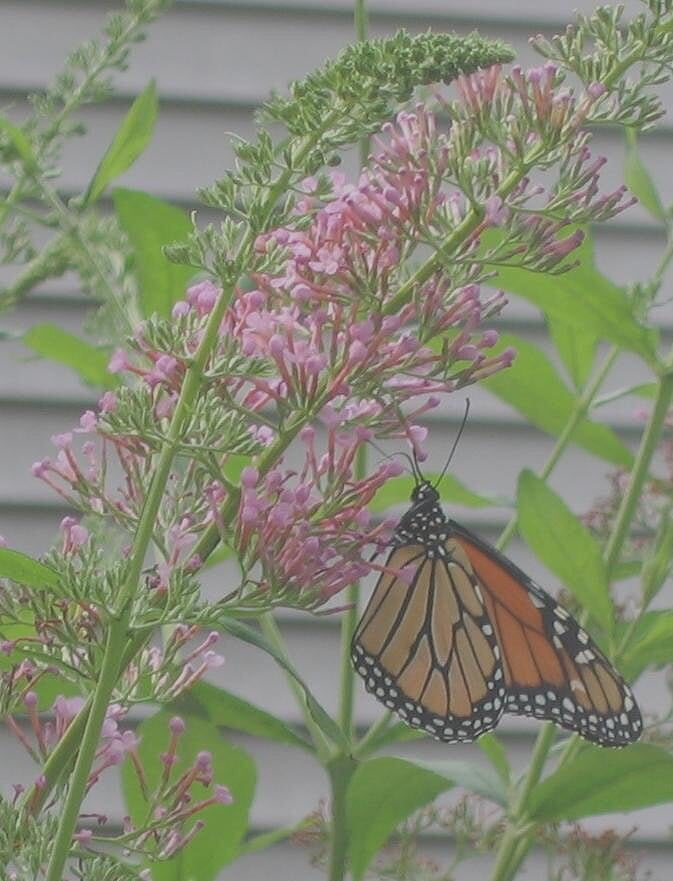
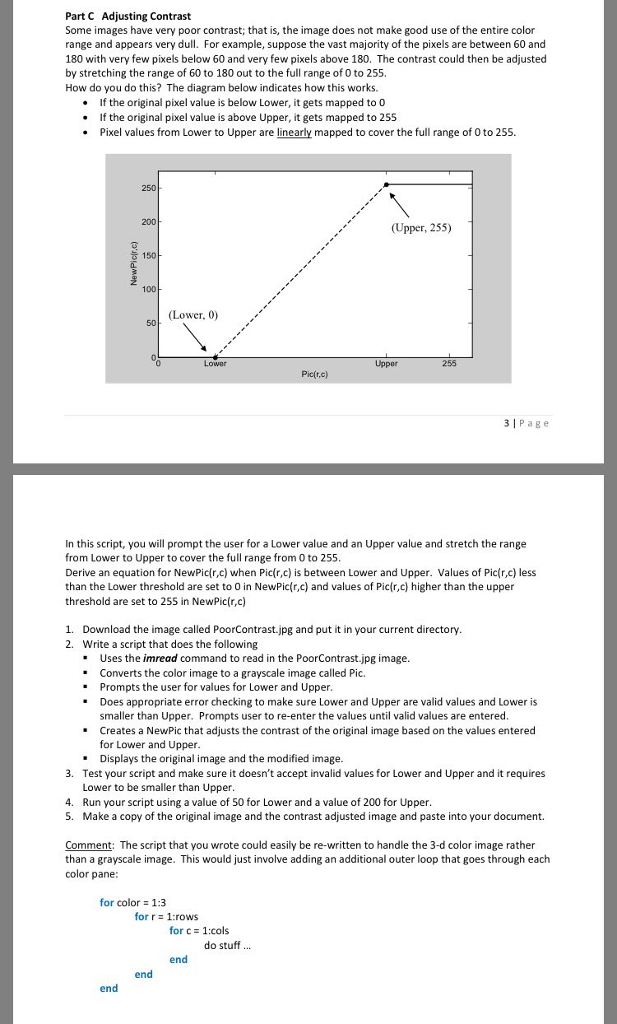
Part C Adjusting Contrast Some images have very poor contrast; that is, the image does not make good use of the entire color range and appears very dull. For example, suppose the vast majority of the pixels are between 60 and 180 with very few pixels below 60 and very few pixels above 180. The contrast could then be adjusted by stretching the range of 60 to 130 out to the full range of 0 to 255 How do you do this? The diagram below indicates how this works the original pixel value is below Lower, it gets mapped to 0 the original pixel value is above Upper, it gets mapped to 255 * Pixel values from Lower to Upper are linearly mapped to cover the full range of 0to 255, . (Upper, 255) (Lower, 0 31Page In this script, you will prompt the user for a Lower value and an Upper value and stretch the range from Lower to Upper to cover the full range from O to 255. Derive an equation for NewPicir) when Picr,c) is between Lower and Upper. Values of Picir,c) less than the Lower threshold are set to O in NewPiclr,c) and values of Picir.c) higher than the upper threshold are set to 255 in NewPic(r.c) 1 Download the image called PoorContrast.jpg and put it in your current directory. 2. Write a script that does the following Uses the imread command to read in the PoorContrast.jpg image. " Converts the color image to a grayscale image called Pic Prompts the user for values for Lower and Upper Does appropriate error checking to make sure Lower and Upper are valid values and Lower i smaller than Upper, Prompts user to re-enter the values until valid values are entered Creates a NewPic that adjusts the contrast of the original image based on the values entered - for Lower and Upper Displays the original image and the modified image 3. Test your script and make sure it doesn't accept invalid values for Lower and Upper and it requires Lower to be smaller than Upper 4. Run your script using a value of 50 for Lower and a value of 200 for Upper 5. Make a copy of the original image and the contrast adjusted image and paste into your document Comment: The script that you wrote could easily be re-written to handle the 3-d color image rather than a grayscale image. This would just involve adding an additional outer loop that goes through each color pane: for color 1:3 forr :rows for c 1:cols do stuff
Step by Step Solution
There are 3 Steps involved in it

Get step-by-step solutions from verified subject matter experts