







Question: A3-Loops-and-Image-Processing The goal of this assignment is to use loop patterns to solve a variety of problems. Starting 1. In Eclipse, create a new project.
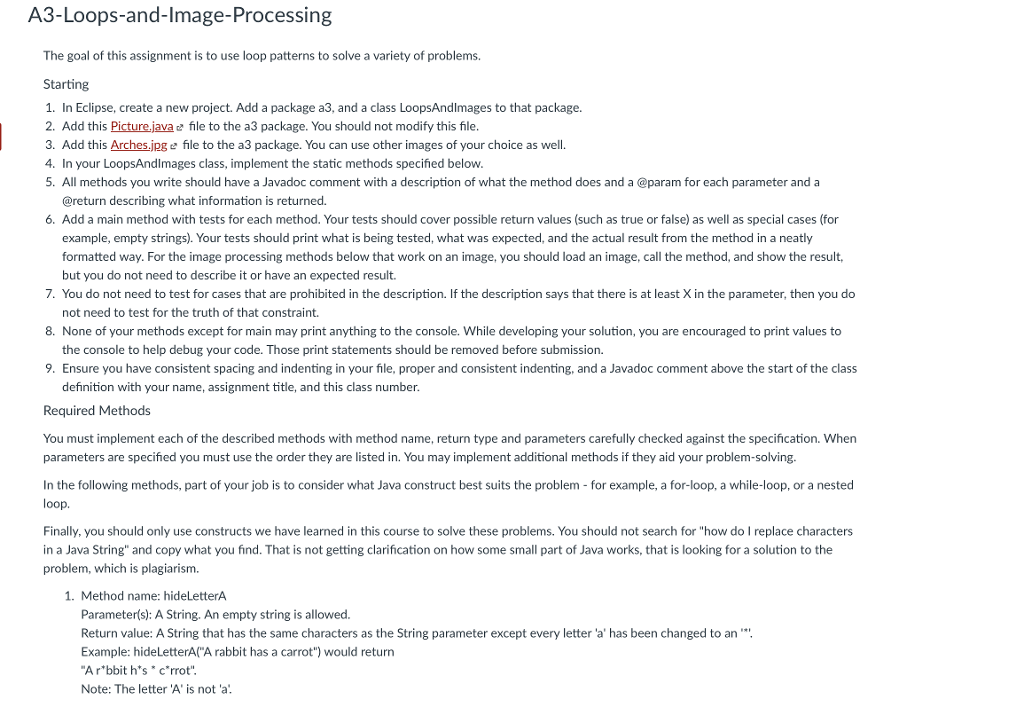
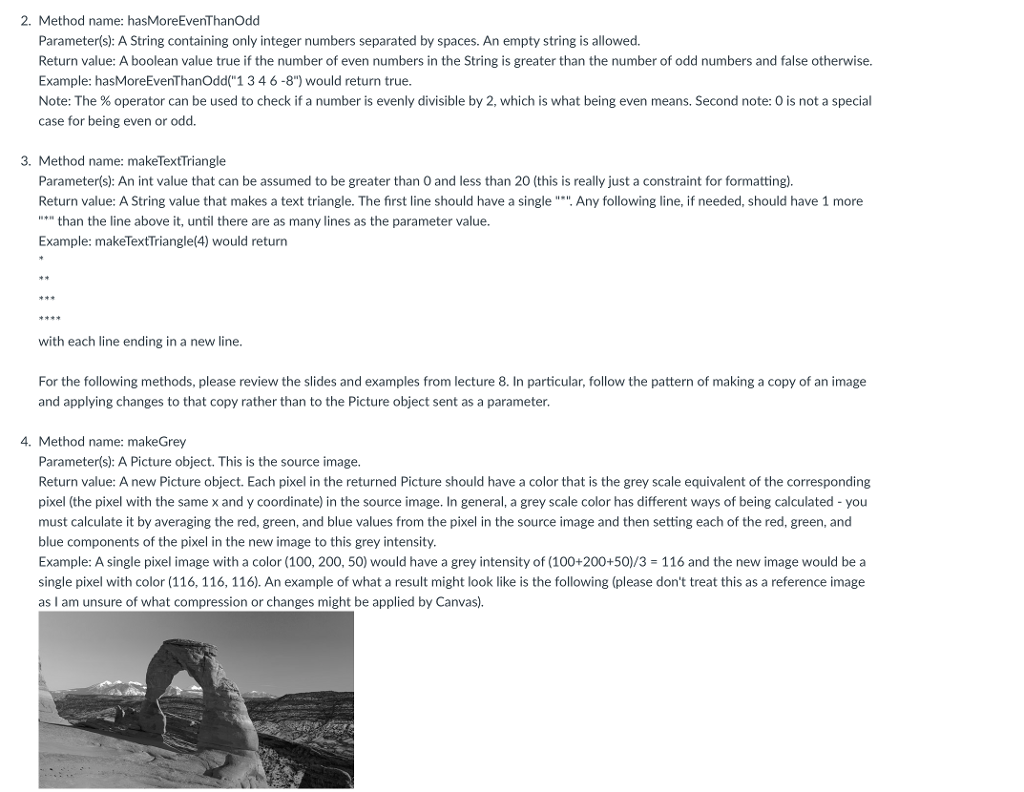
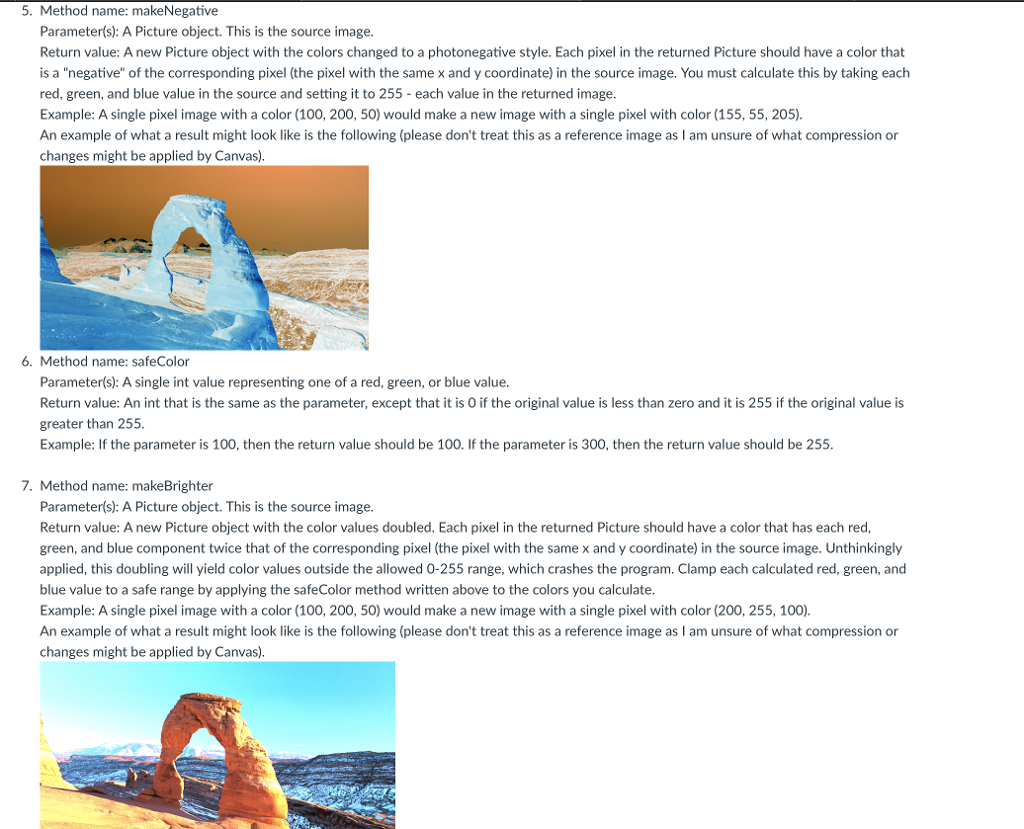
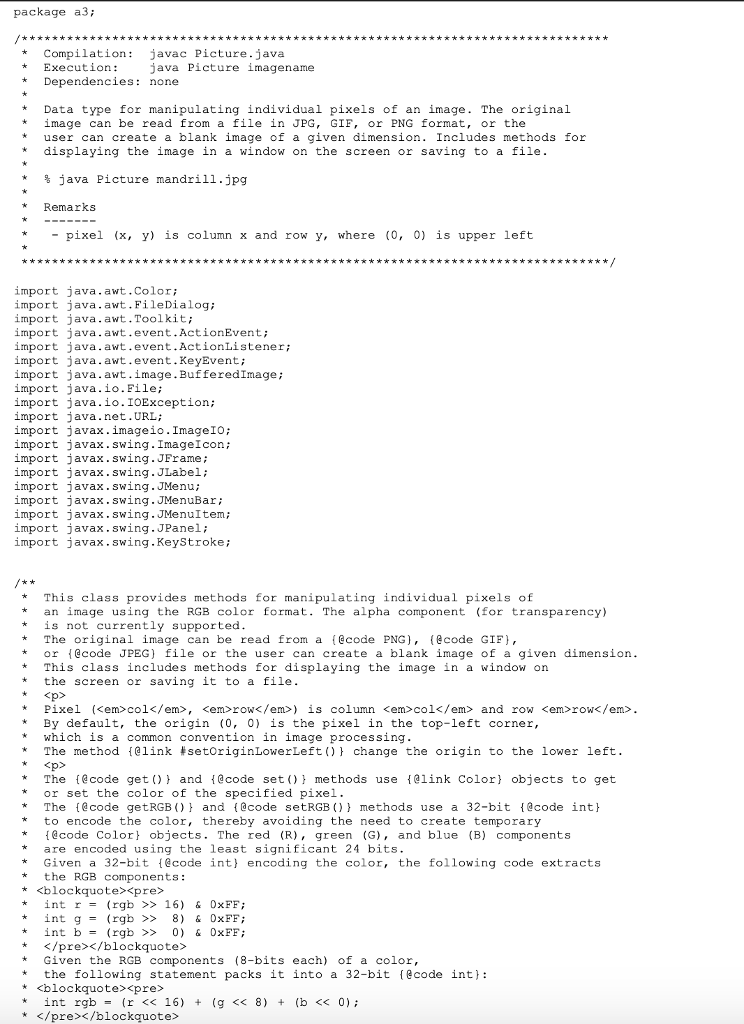
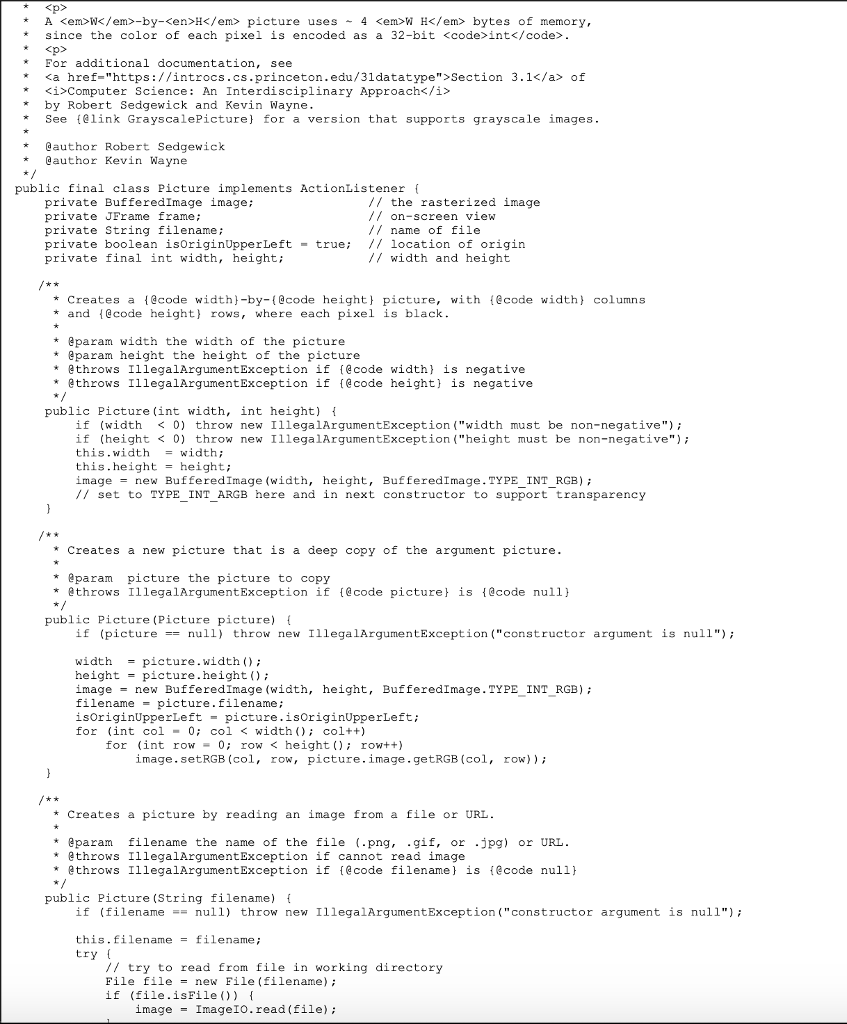
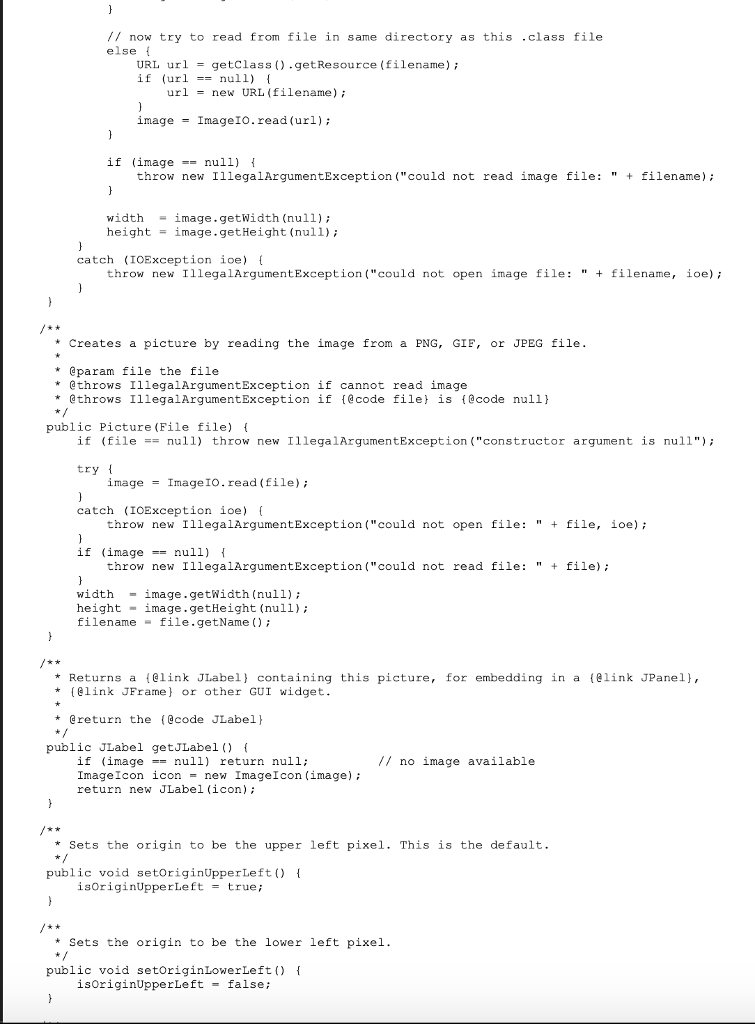
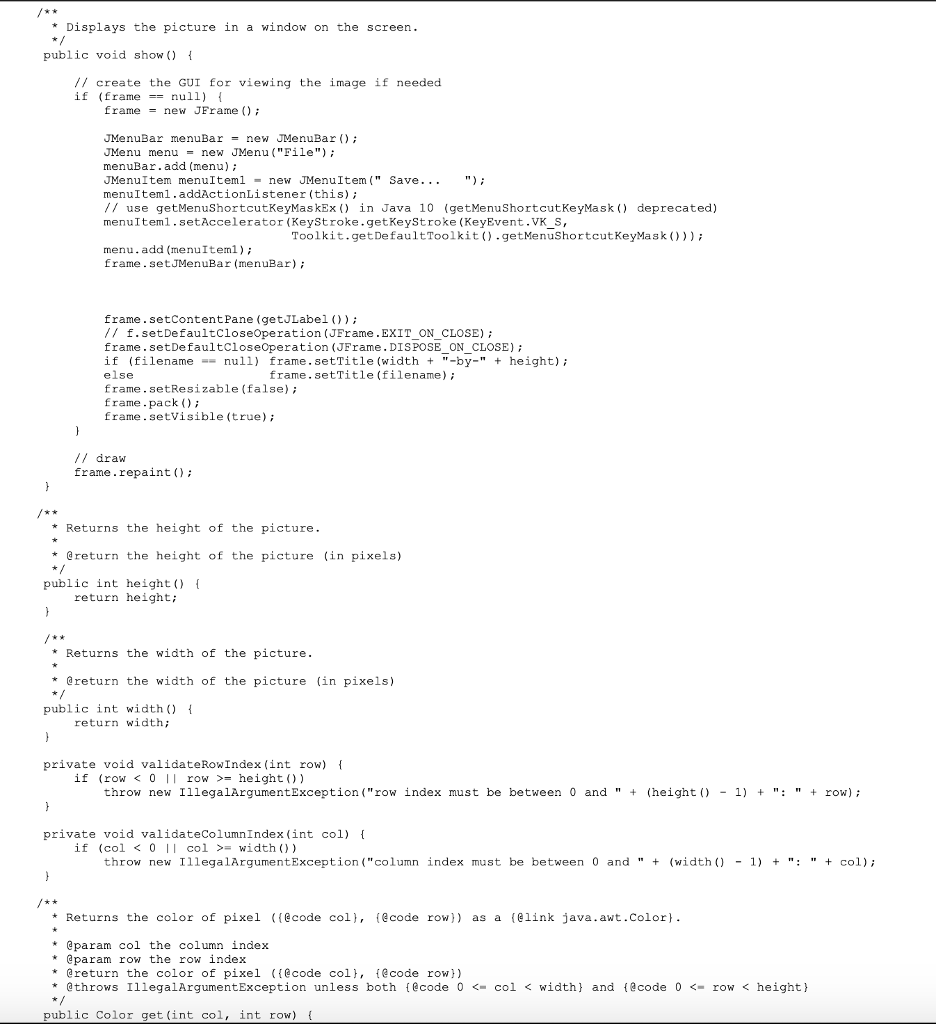
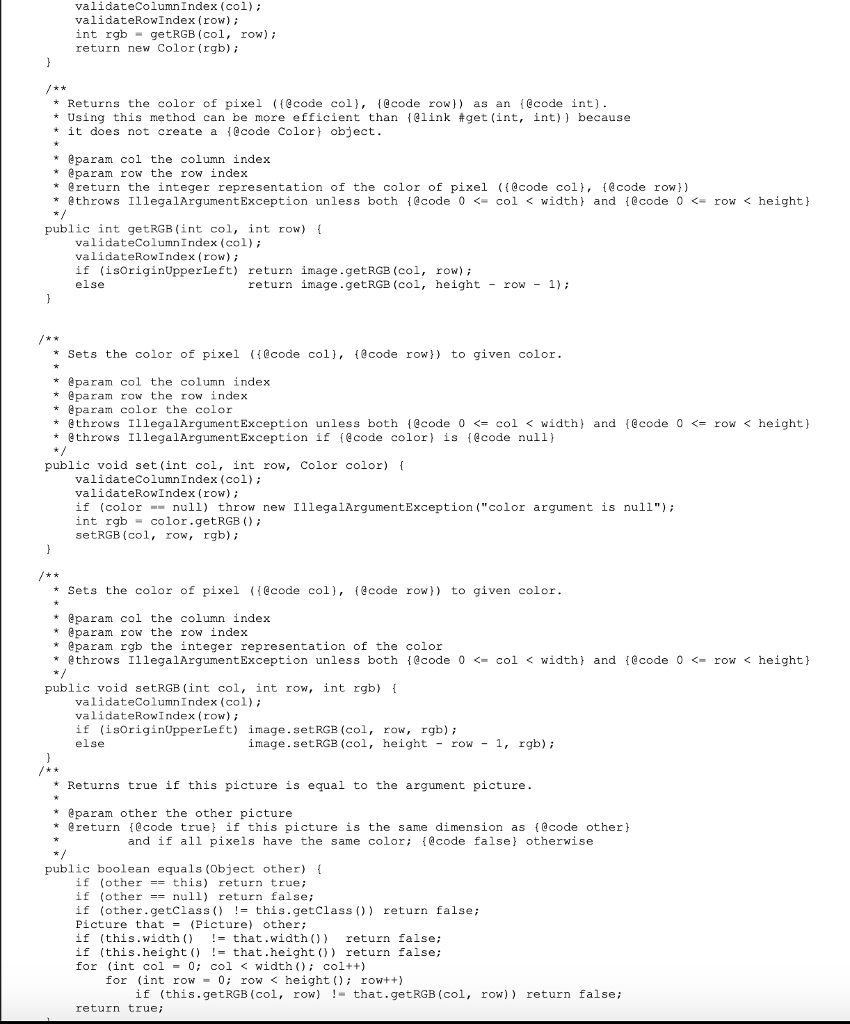
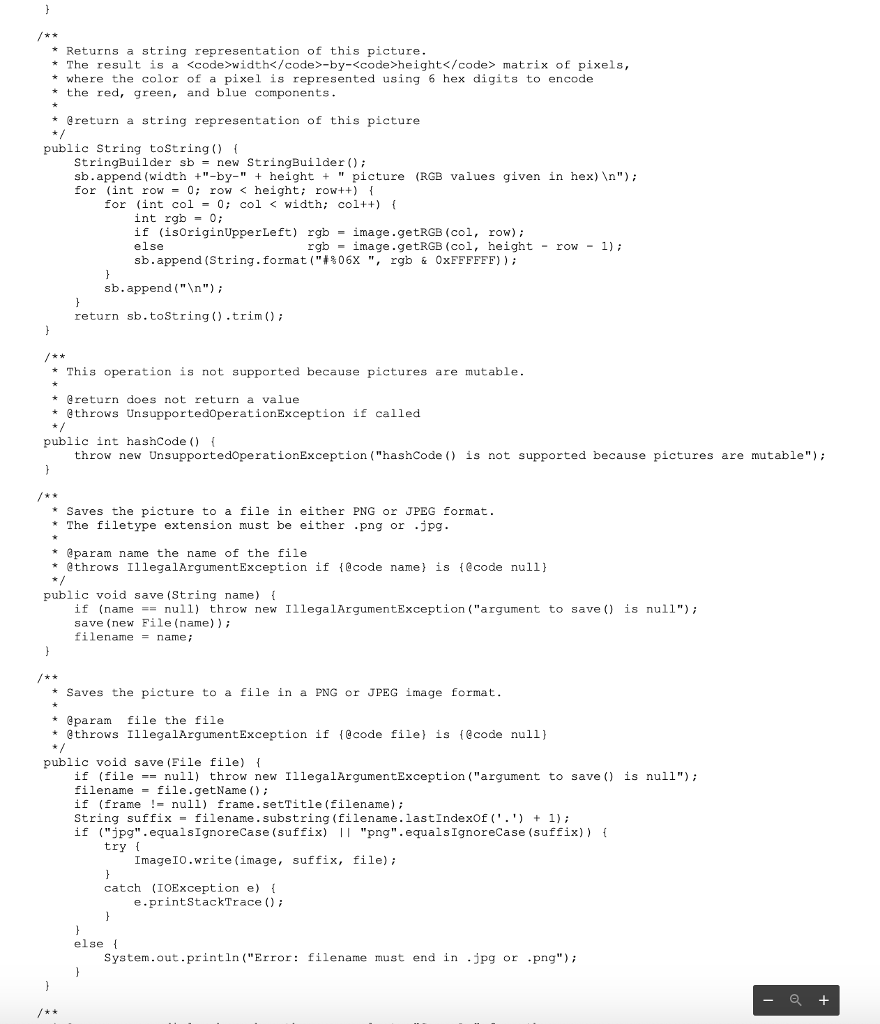
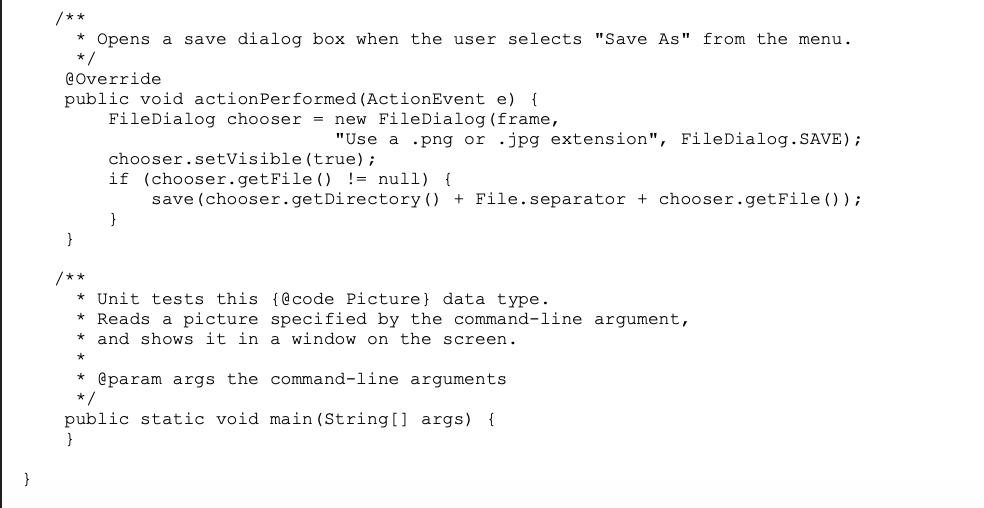
A3-Loops-and-Image-Processing The goal of this assignment is to use loop patterns to solve a variety of problems. Starting 1. In Eclipse, create a new project. Add a package a3, and a class LoopsAndlmages to that package. 2. Add this Picture.java file to the a3 package. You should not modify this file 3. Add this Arches.jpg e file to the a3 package. You can use other images of your choice as well. 4. In your LoopsAndlmages class, implement the static methods specified below 5. All methods you write should have a Javadoc comment with a description of what the method does and a @param for each parameter anda ribing what information is returned. @return desc 6. Add a main method with tests for each method. Your tests should cover possible return values (such as true or false) as well as special cases (for example, empty strings). Your tests should print what is being tested, what was expected, and the actual result from the method in a neatly formatted way. For the image processing methods below that work on an image, you should load an image, call the method, and show the result, but you do not need to describe it or have an expected result. 7. You do not need to test for cases that are prohibited in the description. If the description says that there is at least X in the parameter, then you do not need to test for the truth of that constraint. 8. None of your methods except for main may print anything to the console. While developing your solution, you are encouraged to print values to the console to help debug your code. Those print statements should be removed before submission. 9. Ensure you have consistent spacing and indenting in your file, proper and consistent indenting, and a Javadoc comment above the start of the class definition with your name, assignment title, and this class number. Required Methods You must implement each of the described methods with method name, return type and parameters carefully checked against the specification. When parameters are specified you must use the order they are listed in. You may implement additional methods if they aid your problem-solving In the following methods, part of your job is to consider what Java construct best suits the problem for example, a for-loop, a while-loop, or a nested loop Finally, you should only use constructs we have learned in this course to solve these problems. You should not search for "how do I replace characters in a Java String" and copy what you find. That is not getting clarification on how some small part of Java works, that is looking for a solution to the problem, which is plagiarism. 1. Method name: hideLetterA Parameter(s): A String. An empty string is allowed. Return value: A String that has the same characters as the String parameter except every letter 'a' has been changed to an ." Example: hideLetterA( A rabbit has a carrot") would return Ar bbit h'sc"rrot" Note: The letter A' is not 'a 2. Method name: hasMoreEvenThanOdd Parameter(s): A String containing only integer numbers separated by spaces. An empty string is allowed. Return value: A boolean value true if the number of even numbers in the String is greater than the number of odd numbers and false otherwise. Example: hasMoreEvenThanOdd"1 346-8") would return true. Note: The % operator can be used to check if a number is evenly divisible by 2. which is what being even means second note. , no spec al case for being even or odd. 3. Method name: makeTextTriangle Parameter(s): An int value that can be assumed to be greater than 0 and less than 20 (this is really just a constraint for formatting) Return value: A String value that makes a text triangle. The first line should have a single "*". Any following line, if needed, should have 1 more than the line above it, until there are as many lines as the parameter value. Example: makeTextTriangle(4) would return with each line ending in a new line. For the following methods, please review the slides and examples from lecture 8. In particular, follow the pattern of making a copy of an image and applying changes to that copy rather than to the Picture object sent as a parameter. 4. Method name: makeGrey Parameter(s): A Picture object. This is the source image Return value: A new Picture object. Each pixel in the returned Picture should have a color that is the grey scale equivalent of the corresponding pixel (the pixel with the same x and y coordinate) in the source image. In general, a grey scale color has different ways of being calculated - you must calculate it by averaging the red, green, and blue values from the pixel in the source image and then setting each of the red, green, and blue components of the pixel in the new image to this grey intensity. Example: A single pixel image with a color (100, 200, 50) would have a grey intensity of (100+200+50)/3- 116 and the new image would be a single pixel with color (116, 116, 116). An example of what a result might look like is the following (please don't treat this as a reference image as I am unsure of what compression or changes might be applied by Canvas). 5. Method name: makeNegative Parameter(s): A Picture object. This is the source image. Return value: A new Picture object with the colors changed to a photonegative style. Each pixel in the returned Picture should have a color that is a "negative" of the corresponding pixel (the pixel with the same x and y coordinate) in the source image. You must calculate this by taking each red, green, and blue value in the source and setting it to 255 - each value in the returned image. Example: A single pixel image with a color (100, 200, 50) would make a new image with a single pixel with color (155, 55, 205) An example of what a result might look like is the following (please don't treat this as a reference image as I am unsure of what compression or changes might be applied by Canvas). 6. Method name: safeColor Parameter(s): A single int value representing one of a red, green, or blue value. Return value: An int that is the same as the parameter, except that it is O if the original value is less than zero and it is 255 if the original value is greater than 255 Example: If the parameter is 100, then the return value should be 100. If the parameter is 300, then the return value should be 255 7. Method name: makeBrighter Parameter(s): A Picture object. This is the source image. Return value: A new Picture object with the color values doubled. Each pixel in the returned Picture should have a color that has each red green, and blue component twice that of the corresponding pixel (the pixel with the same x and y coordinate) in the source image. Unthinkingly applied, this doubling will yield color values outside the allowed 0-255 range, which crashes the program. Clamp each calculated red, green, and blue value to a safe range by applying the safeColor method written above to the colors you calculate. Example: A single pixel image with a color (100, 200, 50) would make a new image with a single pixel with color (200, 255, 100) An example of what a result might look like is the following (please don't treat this as a reference image as I am unsure of what compression or changes might be applied by Canvas) package a3; *Compilation: javac Picture.java *Execution: java Picture imagename *Dependencies: none Data type for manipulating individual pixels of an image. The original * image can be read from a file in JPG, GIF, or PNG format, or the user can create a blank image of a given dimension. Includes methods for displaying the image in a window on the screen or saving to a file * % java Picture mandrill.jpg * Remarks *pixel (x, y) is column x and row y, where (0, 0) is upper left import java. awt.Color; import java.awt.FileDialog; import java.awt.Toolkit; import java.awt.event.ActionEvent import java.awt.event.ActionListener; import java.awt.event.KeyEvent; import java.awt.image.BufferedImage; import java.io.File; import java.io.IOException; import java.net.URL import javax.imageio.ImageIO; import javax.swing. ImageIcon; import javax. swing.JFrame; import javax. swing.JLabel: import javax. swing.JMenu; import javax.swing. JMenuBar; import javax.swing. JMenuItem; import javax.swing. JPanel; import javax.swing.KeyStroke; * This class provides methods for manipulating individual pixels of * an image using the RGB color format. The alpha component (for transparency) * is not currently supported *The original image can be read from a (ecode PNG), (ecode GIF) *or @code JPEG) file or the user can create a blank image of a given dimension. *This class includes methods for displaying the image in a window on *the screen or saving it to a file Pixel ( co1 , row) column col row * is and row By default, the origin (O, 0) is the pixel in the top-left corner, * which is a common convention in image processing * The method {@link setoriginLowerLeft()} change the origin to the lower left ap> * The tecode get and code set methods use link Color objects to get *or set the color of the specified pixel. * The @code getRGB and @code setRGB ) methods use a 32-bit 1@code inth *to encode the color, thereby avoiding the need to create temporary code Color objects. The red (R), green (G), and blue (B) components * are encoded using the least significant 24 bits *Given a 32-bit 1@code intl encoding the color, the following code extracts the RGB components:
*int r - (rgb >> 16) & 0xFF * int g-(rgb >> 8) &0xFF * int b-(rgb >> 0) &0xFF *
*Given the RGB components (8-bits each of a color, * the following statement packs it into a 32-bit fecode int: *
* int rgb= (r // now try to read from file in same directory as this .class file else URL url-getcClass).getResource (filename); if (url null) uri = new URL (filename) ; imageImageIO.read (url); if (imagenull) throw new IllegalArgumentException ("could not read image file: "+ filename); width -image.getWidth (null); height image.get Height (null); catch (IOException ioe) throw new IllegalArgumentException ("could not open image file: "+ filename, ioe); *Creates a picture by reading the image from a PNG, GIF, or JPEG file @param file the file *@throws IllegalArgumentException if cannot read image *throws IllegalArgumentException if (@code file is (@code null) public Picture (File file) if (fileull) throw new IllegalArgumentException ("constructor argument is null" try imageImageIO.read (file) catch (IOException oe) [ throw new IllegalArgumentException ("could not open file: "+ file, ioe) if (imagenull) throw new IllegalArgumentException ("could not read file: " + file) width -image.getWidth (null); height- image.getHeight (null); filename file.getName ) *Returns a elink JLabel) containing this picture, for embedding in a (e1ink JPanel), * [elink JFrame or other GUI widget. *@return the (@code JLabel h public JLabel getJLabel // no image available if (imagenull) return null; ImageIcon icon - new ImageIcon (image); return new JLabel (icon); * Sets the origin to be the upper left pixel. This is the default. public void setOriginUpperLeft) isoriginUpperLefttrue *Sets the origin to be the lower left pixel public void setoriginLowerLeft) isoriginUpperLeft -false; Displays the picture in a window on the screen public void show 1 // create the GUI for viewing the image if needed if (frame == null) Erame-new JFrame ) JMenuBar menuBar new JMenuBar JMenu menu = new JMenu ("File"); menuBar.add (menu) MenuItem menuIteml -new JMenuItem" Save. .."); menuIteml.addActionListener (this); // use getMenuShortcutKeyMaskEx ) in Java 10 (getMenuShortcutKeyMask menuItem1.setAccelerator (KeyStroke.getKeyStroke (KeyEvent.VK_S, deprecated) Toolkit.getDefaultToolkit) getMenuShortcutKeyMask)) menu.add (menuItemi); Erame.setJMenuBar (menuBar) frame.setContentPane (getJLabel )); // f.setDefaultCloseoperation (JFrame.EXIT_ON CLOSE) frame.setDefaultCloseOperation (JFrame. DISPOSE_ON_CLOSE) if (filenamenull) frame.setTitle (width "-by-" + height) else frame. setResizable (false) frame. pack ); Erame. setVisible (true); frame.setTitle filename) /I draw frame.repaintO *Returns the height of the picture return the height of the picture (in pixels) public int height return height; Returns the width of the picture *return the width of the picture (in pixels) public int width) return width,; private void validateRowIndex (int row) if (rowwidth-by-height matrix of pixels, *where the color of a pixel is represented using 6 hex digits to encode *the red, green, and blue components *return a string representation of this picture public String toString) StringBuilder sbnew StringBuilder sb.append (width +"-by-"+ height" picture (RGB values given in hex) In") for (int row = 0; row Step by Step Solution
There are 3 Steps involved in it

Get step-by-step solutions from verified subject matter experts
 Study Help