





Question: C# please Overview This is an intro lab to connecting to a database. We will be making a windows application to connect to a database.

C# please

Overview

This is an intro lab to connecting to a database. We will be making a windows application to connect to a database. This lab is derived from Link to guru99.com (Links to an external site.)

Directions

This lab will design a form that connects to a database. Accessing Data from a database is one of the important aspects of any programming language. It is an absolute necessity for any programming language to have the ability to work with databases. C# is no different. It can work with different types of databases. It can work with the most common databases such as Oracle and Microsoft SQL Server. It also can work with new forms of databases such as MongoDB and MySQL.

1. Fundamentals of Database connectivity and Installation of a database

C# and .Net can work with a majority of databases, the most common being Oracle, MongoDB and Microsoft SQL Server. But with every database, the logic behind working with all of them is mostly the same. We will download and install use any one MySQL, Microsoft SQL Server Express Edition and MongoDB, which is a free database software. One is a NoSQL Database and the other is a SQL Database. Difference between SQL and NoSQL (Links to an external site.)

In working with databases, the following are the concepts which are common to all databases.

  1. Connection To work with the data in a database, the first obvious step is the connection. The connection to a database normally consists of the below-mentioned parameters.
    1. Database name or Data Source The first important parameter is the database name to which the connection needs to be established. Each connection can only work with one database at a time.
    2. Credentials The next important aspect is the username and password which needs to be used to establish a connection to the database. It ensures that the username and password have the necessary privileges to connect to the database.
    3. Optional parameters - For each database type, you can specify optional parameters to provide more information on how .net should handle the connection to the database. For example, one can specify a parameter for how long the connection should stay active. If no operation is performed for a specific period of time, then the parameter would determine if the connection has to be closed.
  2. Selecting data from the database Once the connection has been established, the next important aspect is to fetch the data from the database. C# can execute 'SQL' select command against the database. The 'SQL' statement can be used to fetch data from a specific table in the database.
  3. Inserting data into the database C# can also be used to insert records into the database. Values can be specified in C# for each row that needs to be inserted into the database.
  4. Updating data into the database C# can also be used to update existing records into the database. New values can be specified in C# for each row that needs to be updated into the database.
  5. Deleting data from a database C# can also be used to delete records into the database. Select commands to specify which rows need to be deleted can be specified in C#.

We will look into database operations next.

2. Installation of Microsoft SQL Server Express Edition, MySQL and/or MongoDB

SQL Express is a free and feature-limited edition of SQL Server that has been being published since the SQL Server 2005 version and it still continues to be published by Microsoft. Nowadays, Microsoft has released the Express edition of SQL Server 2019.

Follow this link below and see if you can install SQL Server. SQL Server Link (Links to an external site.)

Follow the link to install MongoDB. MongoDB Link (Links to an external site.)

There are links provided in Unit 5 for you to install.

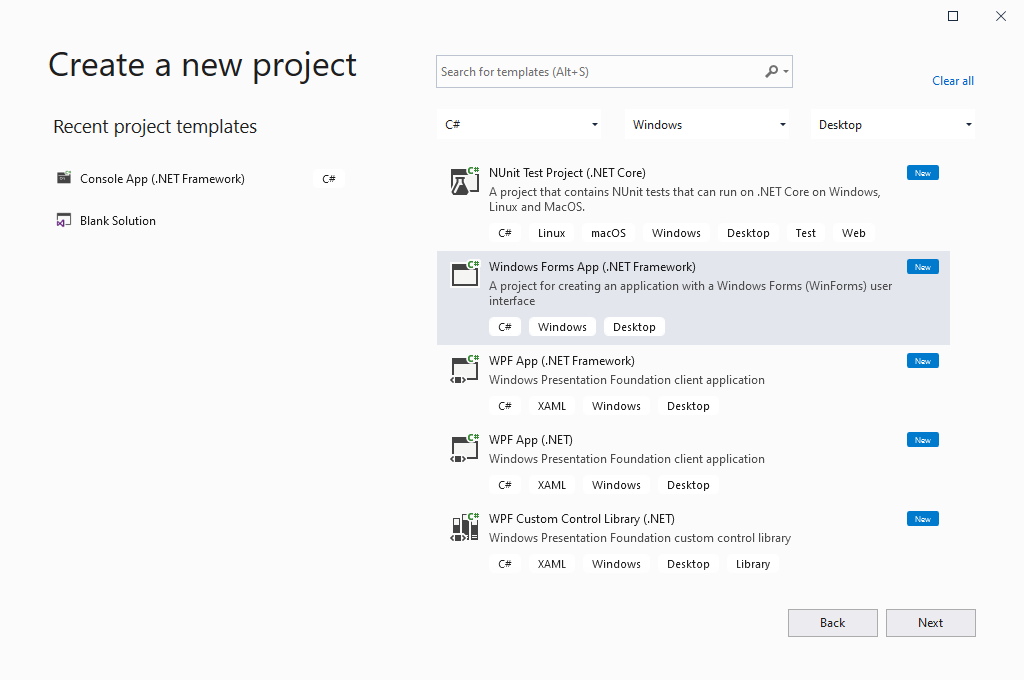
3. Creation of a Project

We will be creating a windows application and create a windows .NET Forms application. Keep in mind to select one of the newer frameworks.
C# please Overview This is an intro lab to connecting to a

database. We will be making a windows application to connect to a

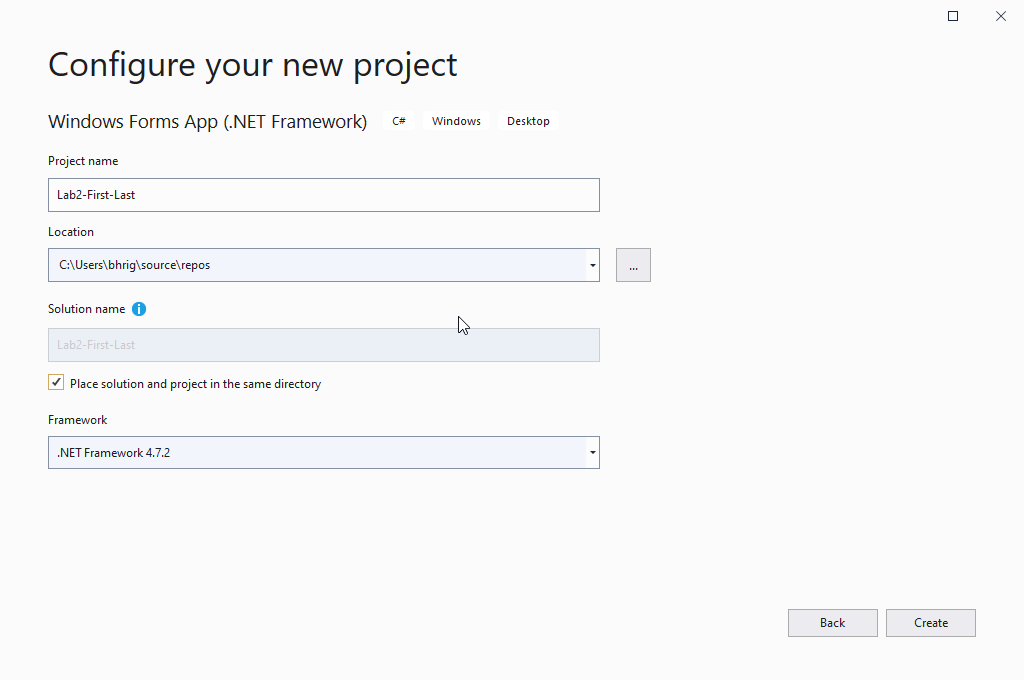
4. Create a new project.

Start a new project. Be sure to store the solution in its own directory.

5. Connection Strings and Queries

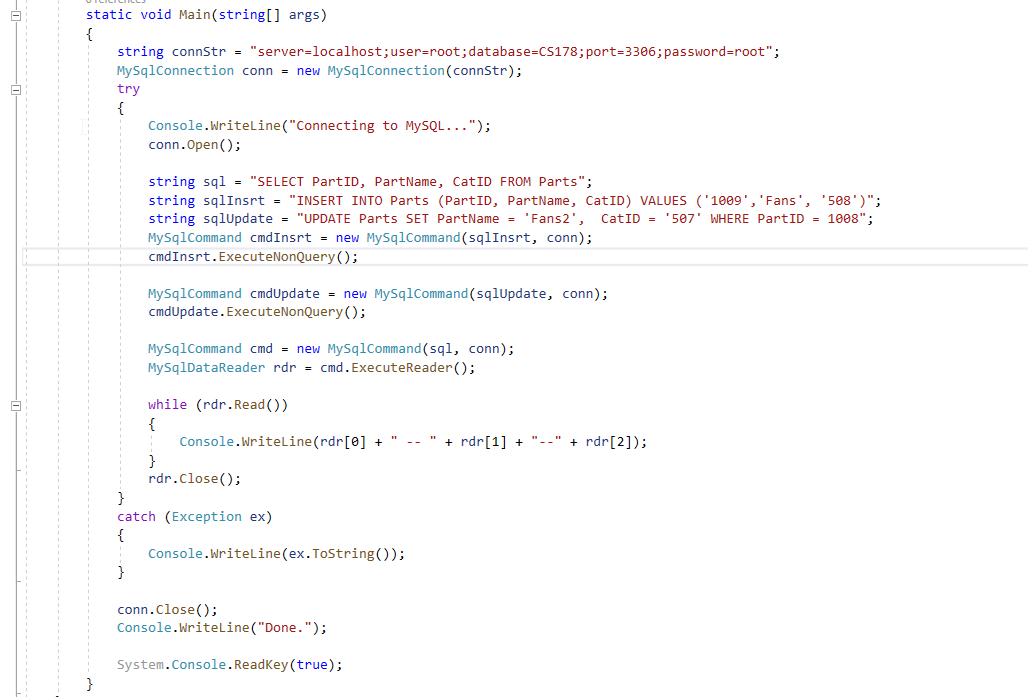
In order to connect to database and display results you will need to create connection strings.

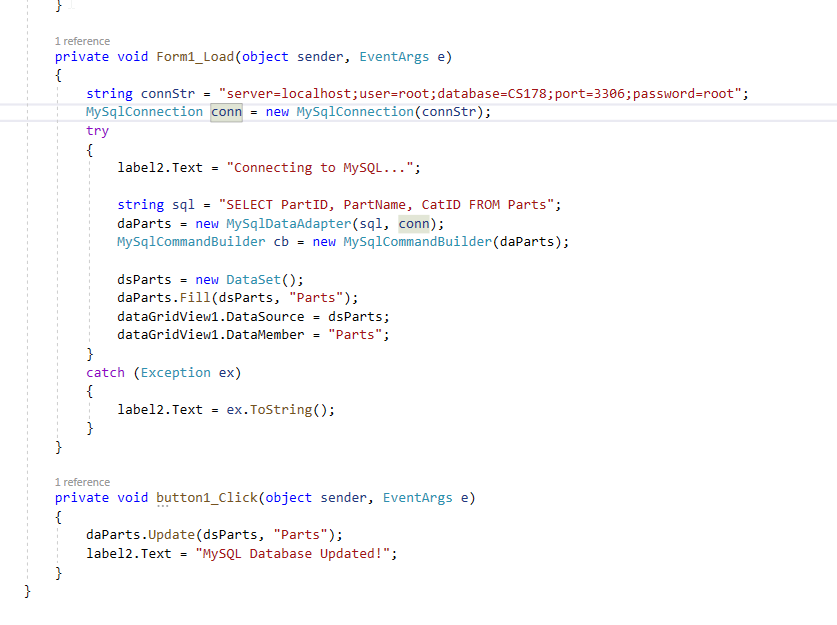
In order to connect your user interface you will need to add the connection code to your forms. An Example of connection string with a command line application below.
database. This lab is derived from Link to guru99.com (Links to an

Slide have more details on using a windows form with a dataset and an adapter with a datagridview.
external site.) Directions This lab will design a form that connects to

6. Database Creation

You will create a database with the following fields. Use the slides to create a database with SQL Commands.

StudentID, Student Name, Address, Age and Semester

7. User Interface

User Interface can look like this. This is just a guide. You can jazz it up.
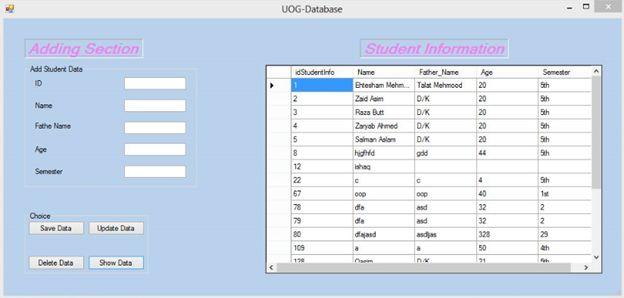
a database. Accessing Data from a database is one of the important

7. Functionality

The following functionality of Saving, Updating, Deleting and Showing Data should be available.

Deliverable

The deliverable will be cs files and screenshots of the interface. You can use the following link to help you take screenshots on windows. If you cant submit three files use zip to create one file.

Create a new project Search for templates (Alt+S) Clear all Recent project templates Windows Desktop Now Console App (.NET Framework) C# F NUnit Test Project (.NET Core) A project that contains NUnit tests that can run on .NET Core on Windows, Linux and Macos. C# Linux macOS Windows Desktop Test Web w Blank Solution Now ] Windows Forms App (.NET Framework) A project for creating an application with a Windows Forms (WinForms) user interface Windows Desktop Now WPF App (.NET Framework) Windows Presentation Foundation client application XAML Windows Desktop New C# WPF App (.NET) Windows Presentation Foundation client application XAML Windows Desktop New OC# WPF Custom Control Library (.NET) WT = Windows Presentation Foundation custom control library C# XAML Windows Desktop Library Back Next Configure your new project Windows Forms App (.NET Framework) Windows Desktop Project name Lab2-First-Last Location C:\Users\bhrig source repos Solution name 0 Lab2-First-Last Place solution and project in the same directory Framework .NET Framework 4.7.2 Back Create static void Main(string[] args) { string connStr = "server=localhost;user=root;database=CS178; port=3306; password=root"; MySqlConnection conn = new MySqlConnection(connStr); try { Console.WriteLine("Connecting to MySQL..."); conn.Open(); string sql = "SELECT PartID, PartName, CatID FROM Parts"; string sqlInsrt = "INSERT INTO Parts (PartID, PartName, CatID) VALUES ('1889', 'Fans', '508')"; string sqlUpdate = "UPDATE Parts SET PartName = 'Fans2', CatID = '507' WHERE PartID = 1008"; MySqlCommand cmd Insrt = new MySqlCommand(sqlInsrt, conn); cmdInsrt.ExecuteNonQuery(); MySqlCommand cmdUpdate = new MySqlCommand(sqlUpdate, conn); cmdUpdate.ExecuteNonQuery(); MySqlCommand cmd = new MySqlCommand(sql, conn); MySqlDataReader rdr = cmd.ExecuteReader(); while (rdr.Read() + rdr[1] + "--" + rdr[2]); Console.WriteLine(rdr[@] + } rdr.close(); catch (Exception ex) { Console.WriteLine(ex.ToString(); conn.Close(); Console.WriteLine("Done."); System.Console.ReadKey(true); 1 reference private void Form1_Load(object sender, EventArgs e) { string constr = "server-localhost; user=root;database=C5178; port=3306; password=root"; MySqlConnection conn = new MySqlConnection(connStr); try { label2.Text = "Connecting to MySQL..."; string sql "SELECT PartID, PartName, CatID FROM Parts"; daParts = new MySqlDataAdapter(sql, conn); MySqlCommandBuilder cb = new MySqlCommandBuilder (daParts); dsParts = new DataSet(); daParts.Fill(dsParts, "Parts"); dataGridView1.DataSource = dsParts; dataGridView1.DataMember = "Parts"; } catch (Exception ex) { label2. Text ex.ToString(); } } 1 reference private void button1_Click(object sender, EventArgs e) { daparts. Update (dsParts, "Parts"); label2.Text = "MySQL Database Updated!"; } D VOG-Database Adding Section Student Information Add Student Data ID Studentino Semester Name 2 3 4 5 Name Father_Name Etosham Mehm. Tale Mehmood Zaid laim DK Razs Butt DK Zoryab Ahmed DK Saman Aslan DK hidd gold isha Age 20 20 20 20 20 Fathe Name sh 5th 9th Sth 9h Age 44 8 12 Semester C 4 sh 000 40 22 57 78 79 80 da op asd asd 18 2 2 32 32 328 Choice Save Data Update Data 29 & 50 109 190 Delete Data Show Dota 91 Furth Create a new project Search for templates (Alt+S) Clear all Recent project templates Windows Desktop Now Console App (.NET Framework) C# F NUnit Test Project (.NET Core) A project that contains NUnit tests that can run on .NET Core on Windows, Linux and Macos. C# Linux macOS Windows Desktop Test Web w Blank Solution Now ] Windows Forms App (.NET Framework) A project for creating an application with a Windows Forms (WinForms) user interface Windows Desktop Now WPF App (.NET Framework) Windows Presentation Foundation client application XAML Windows Desktop New C# WPF App (.NET) Windows Presentation Foundation client application XAML Windows Desktop New OC# WPF Custom Control Library (.NET) WT = Windows Presentation Foundation custom control library C# XAML Windows Desktop Library Back Next Configure your new project Windows Forms App (.NET Framework) Windows Desktop Project name Lab2-First-Last Location C:\Users\bhrig source repos Solution name 0 Lab2-First-Last Place solution and project in the same directory Framework .NET Framework 4.7.2 Back Create static void Main(string[] args) { string connStr = "server=localhost;user=root;database=CS178; port=3306; password=root"; MySqlConnection conn = new MySqlConnection(connStr); try { Console.WriteLine("Connecting to MySQL..."); conn.Open(); string sql = "SELECT PartID, PartName, CatID FROM Parts"; string sqlInsrt = "INSERT INTO Parts (PartID, PartName, CatID) VALUES ('1889', 'Fans', '508')"; string sqlUpdate = "UPDATE Parts SET PartName = 'Fans2', CatID = '507' WHERE PartID = 1008"; MySqlCommand cmd Insrt = new MySqlCommand(sqlInsrt, conn); cmdInsrt.ExecuteNonQuery(); MySqlCommand cmdUpdate = new MySqlCommand(sqlUpdate, conn); cmdUpdate.ExecuteNonQuery(); MySqlCommand cmd = new MySqlCommand(sql, conn); MySqlDataReader rdr = cmd.ExecuteReader(); while (rdr.Read() + rdr[1] + "--" + rdr[2]); Console.WriteLine(rdr[@] + } rdr.close(); catch (Exception ex) { Console.WriteLine(ex.ToString(); conn.Close(); Console.WriteLine("Done."); System.Console.ReadKey(true); 1 reference private void Form1_Load(object sender, EventArgs e) { string constr = "server-localhost; user=root;database=C5178; port=3306; password=root"; MySqlConnection conn = new MySqlConnection(connStr); try { label2.Text = "Connecting to MySQL..."; string sql "SELECT PartID, PartName, CatID FROM Parts"; daParts = new MySqlDataAdapter(sql, conn); MySqlCommandBuilder cb = new MySqlCommandBuilder (daParts); dsParts = new DataSet(); daParts.Fill(dsParts, "Parts"); dataGridView1.DataSource = dsParts; dataGridView1.DataMember = "Parts"; } catch (Exception ex) { label2. Text ex.ToString(); } } 1 reference private void button1_Click(object sender, EventArgs e) { daparts. Update (dsParts, "Parts"); label2.Text = "MySQL Database Updated!"; } D VOG-Database Adding Section Student Information Add Student Data ID Studentino Semester Name 2 3 4 5 Name Father_Name Etosham Mehm. Tale Mehmood Zaid laim DK Razs Butt DK Zoryab Ahmed DK Saman Aslan DK hidd gold isha Age 20 20 20 20 20 Fathe Name sh 5th 9th Sth 9h Age 44 8 12 Semester C 4 sh 000 40 22 57 78 79 80 da op asd asd 18 2 2 32 32 328 Choice Save Data Update Data 29 & 50 109 190 Delete Data Show Dota 91 Furth

Step by Step Solution

There are 3 Steps involved in it

1 Expert Approved Answer
Step: 1 Unlock

Windows Forms Application with MySQL Summary and Implementation Guide 1 Overview This lab demonstrates how to build a C Windows Forms Application that connects to a MySQL Database performs CRUD operat... View full answer

blur-text-image
Question Has Been Solved by an Expert!

Get step-by-step solutions from verified subject matter experts

Step: 2 Unlock
Step: 3 Unlock

Students Have Also Explored These Related Databases Questions!