







Question: I'm having a hard time setting up these tables for #5, #6, and #7. Everytime I check my work it doesn't look like the figure
I'm having a hard time setting up these tables for #5, #6, and #7. Everytime I check my work it doesn't look like the figure shown. 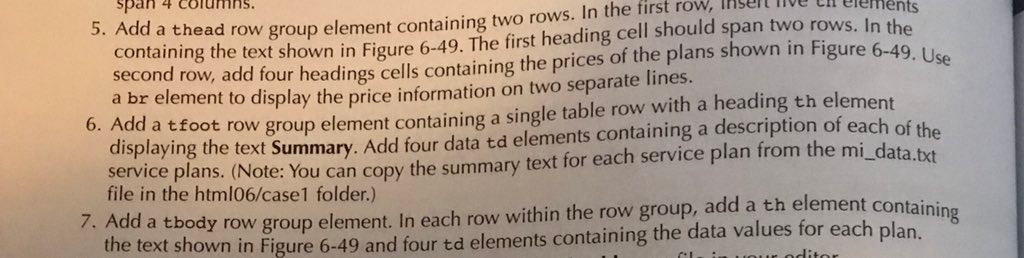
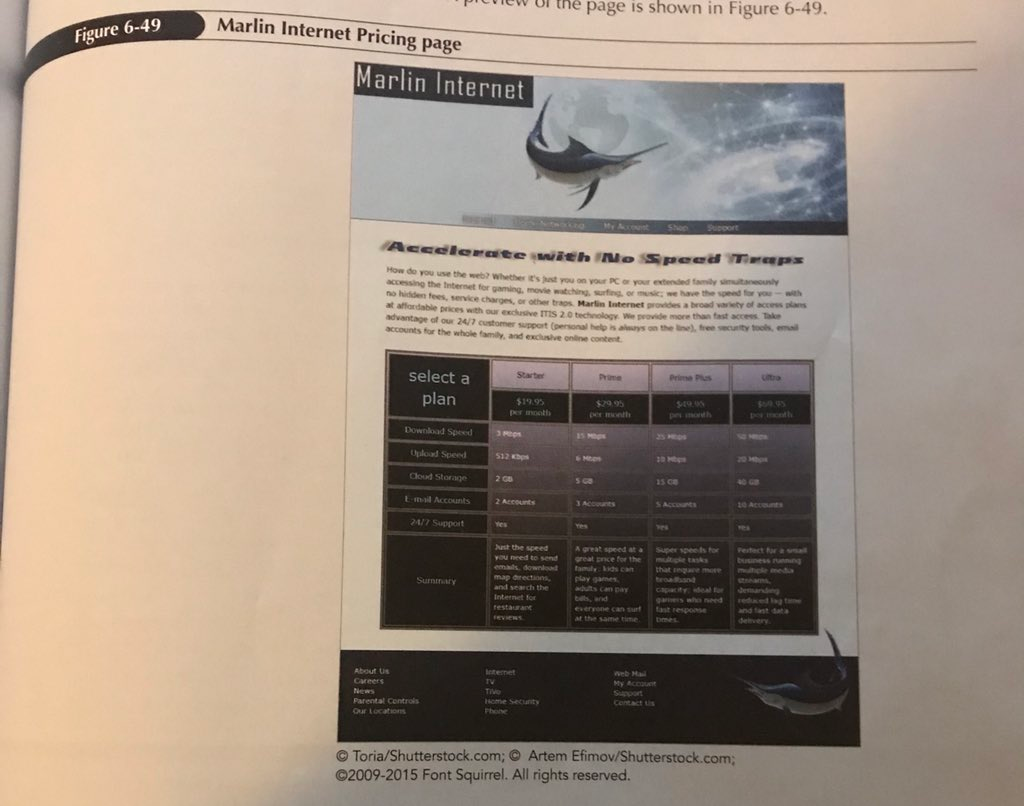
pan columns. a thead row group element containing two rows. In the first row,t e ll lments containing the text shown in Figure 6-49. The first heading cell should span two rows. In the second row, add four heading cells containing the prices of the plans shown in Figure 649 d br element to display the price information on two separate lines. a tfoot row group element containing a single table row with a heading th element displaying the text Summary. Add four data td elements containing a description of each of the service plans. (Note: You can copy the summary text for each service plan from the mi_data.tt 6. Add file in the html06/case1 folder.) Add a tbody row group element. In each row within the row group, add a th element cont the text shown in Figure 6-49 a 7. nd four td elements containing the data values for each plan. pan columns. a thead row group element containing two rows. In the first row,t e ll lments containing the text shown in Figure 6-49. The first heading cell should span two rows. In the second row, add four heading cells containing the prices of the plans shown in Figure 649 d br element to display the price information on two separate lines. a tfoot row group element containing a single table row with a heading th element displaying the text Summary. Add four data td elements containing a description of each of the service plans. (Note: You can copy the summary text for each service plan from the mi_data.tt 6. Add file in the html06/case1 folder.) Add a tbody row group element. In each row within the row group, add a th element cont the text shown in Figure 6-49 a 7. nd four td elements containing the data values for each plan
Step by Step Solution
There are 3 Steps involved in it

Get step-by-step solutions from verified subject matter experts
 Study Help