



Question: on C++ visual studio STEP 1: Understand the UML Diagram The only change to the Employee class is that there is a new attribute: +benefit
on C++ visual studio
STEP 1: Understand the UML Diagram
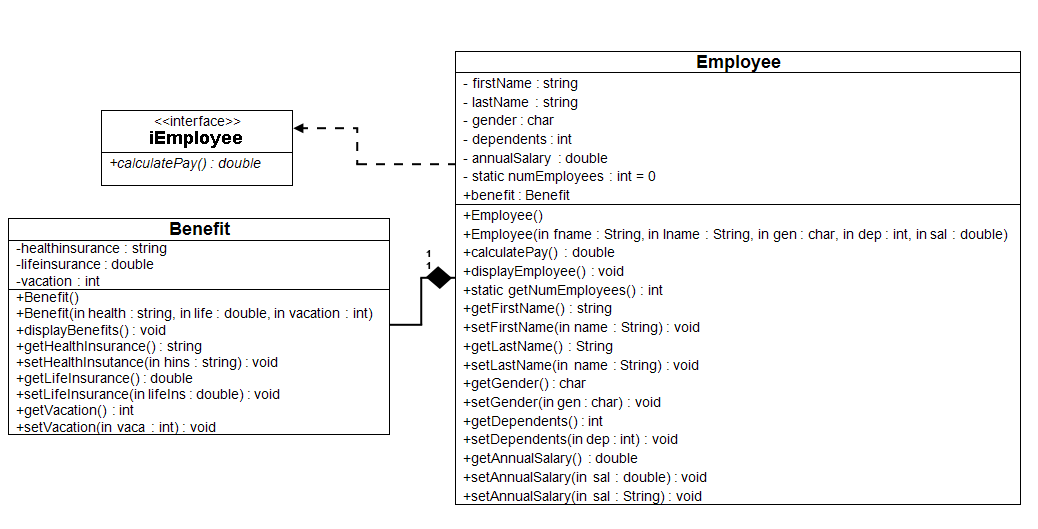
The only change to the Employee class is that there is a new attribute:
+benefit : Benefit
Notice that there is a "+" for this attribute, meaning that it is public. Make sure to examine the multi-arg constructor's signature!
Also, the dotted directed line between Employee and iEmployee specifies that the Employee class must implement the iEmployee abstract class, and thus provide an implementation for the calculatePay method.
STEP 2: Create the Project
You will want to use the Week 3 project as the starting point for the lab. To do this, you will want to create a new project by following these steps:
Create a new project and name it "CIS247C_WK4_Lab_LASTNAME".
Copy all the source files from the Week 3 project into the Week 4 project.
Before you move on to the next step, build and execute the Week 4 project.
STEP 3: Modify the Employee Class
Using the UML Diagrams from Step 1, create the Benefit class. To get an idea of how to format displayBenefits, take a look at the output in Step 5.
Add a Benefit attribute to the Employee class.
Initialize the new Benefit attribute in both Employee constructors. Again, take note of the multi-arg constructors parameter list!
Create the iEmployee interface (abstract class in C++).
Modify the Employee class to implement the new interface so that Employee will have to implement the calculatePay method. 
Modify the Employee class to call displayBenefit when displaying Employee information.
STEP 4: Modify the Main Method
Notice that the Employee class now has a public benefit object inside it. This means that you can access the set methods of the Benefit object with the following code:
.benefit.
As an example, to set the lifeInsurance attribute inside an Employee object called emp, we could execute the following code:
emp.benefit.setLifeInsurance(lifeInsurance);
The steps required to modify the Main class are below. New steps are in bold.
Create an Employee object using the default constructor.
Prompt for and then set the first name, last name, and gender. Consider using your getInput method from Week 1 to obtain data from the user for this step as well as Step 3.
Prompt for and then set the dependents and annual salary using the overloaded setters that accept Strings.
Prompt for and set healthInsurance, lifeInsurance, and vacation.
Using your code from Week 1, display a divider that contains the string "Employee Information".
Display the Employee Information.
Display the number of employees created using getNumEmployees(). Remember to access getNumEmployees using the class name, not the Employee object.
Create a Benefit object called benefit1 using the multi-arg construction. Use any information you want for health insurance, life insurance, and vacation.
Create another Employee object and use the constructor to fill it with the following: "Mary", "Noia", 'F', 5, 24000.0, benefit1
Using your code from Week 1, display a divider that contains the string "Employee Information".
Display the employee information.
Display the number of employees created using getNumEmployees(). Remember to access getNumEmployees using the class name, not the Employee object.
STEP 5: Compile and Test
When done, compile and run your code.
Then, debug any errors until your code is error-free.
Check your output to ensure that you have the desired output, modify your code as necessary, and rebuild.
STEP 6: Screen Prints
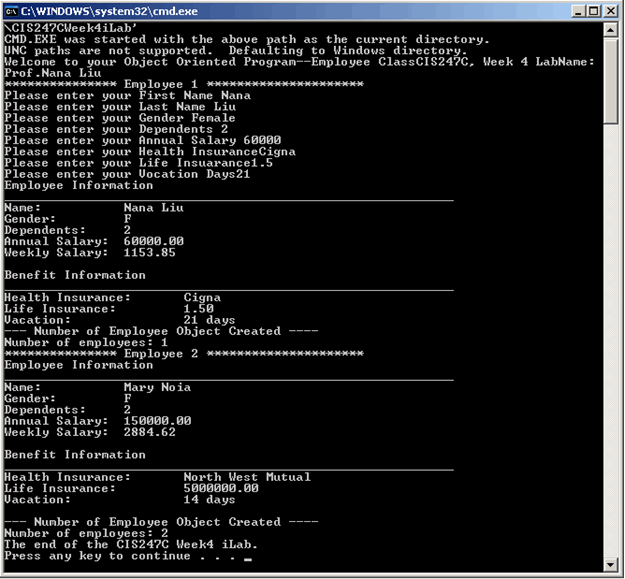
Capture the Console output window and paste it into a Word document. The following is a sample screen print.
Step by Step Solution
There are 3 Steps involved in it

Get step-by-step solutions from verified subject matter experts