







Question: Question: 1. Aside from the technique in the image in the top on how to maintain Computer Networks, Give more any ideas or techniques on
Question:
1. Aside from the technique in the image in the top on how to maintain Computer Networks, Give more any ideas or techniques on how to maintain Computer Networks.
please help me to this one.
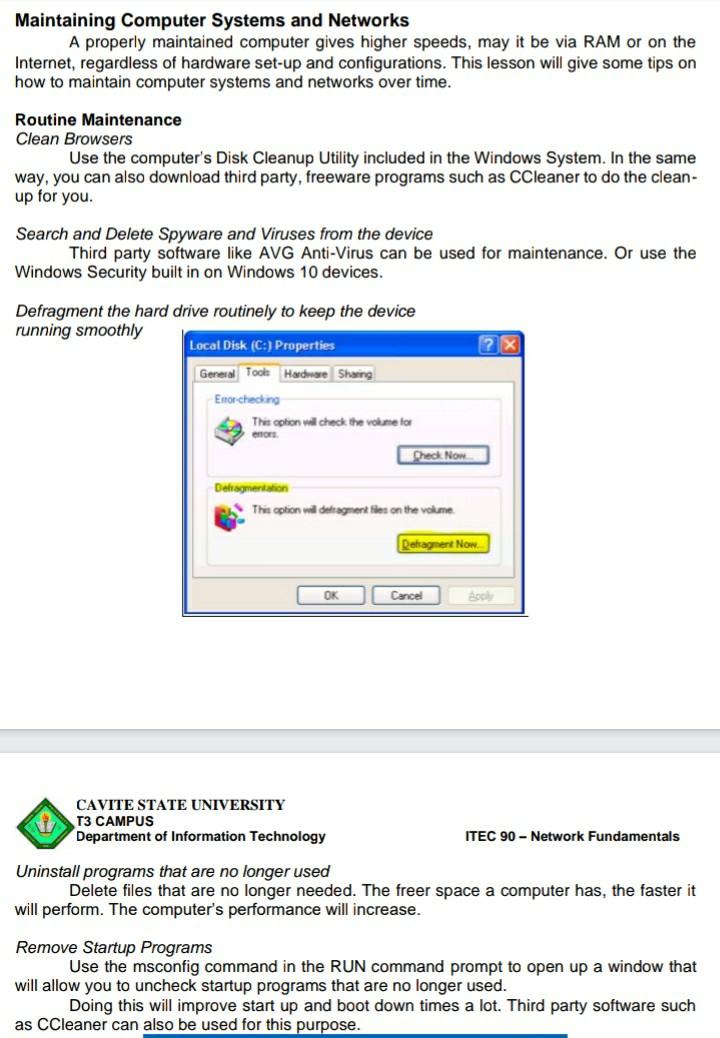
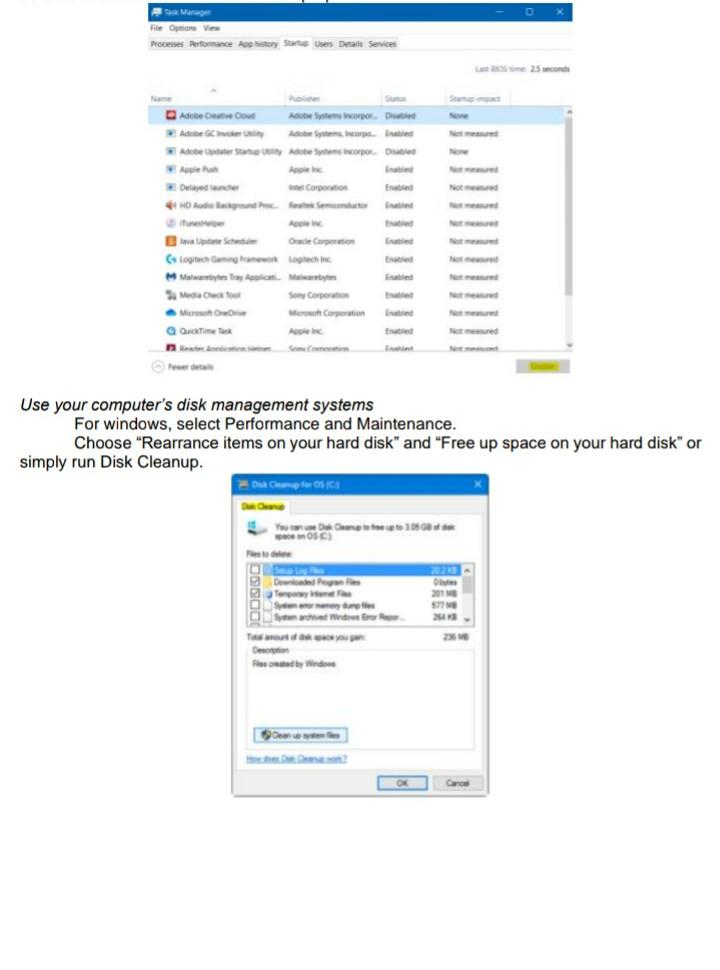
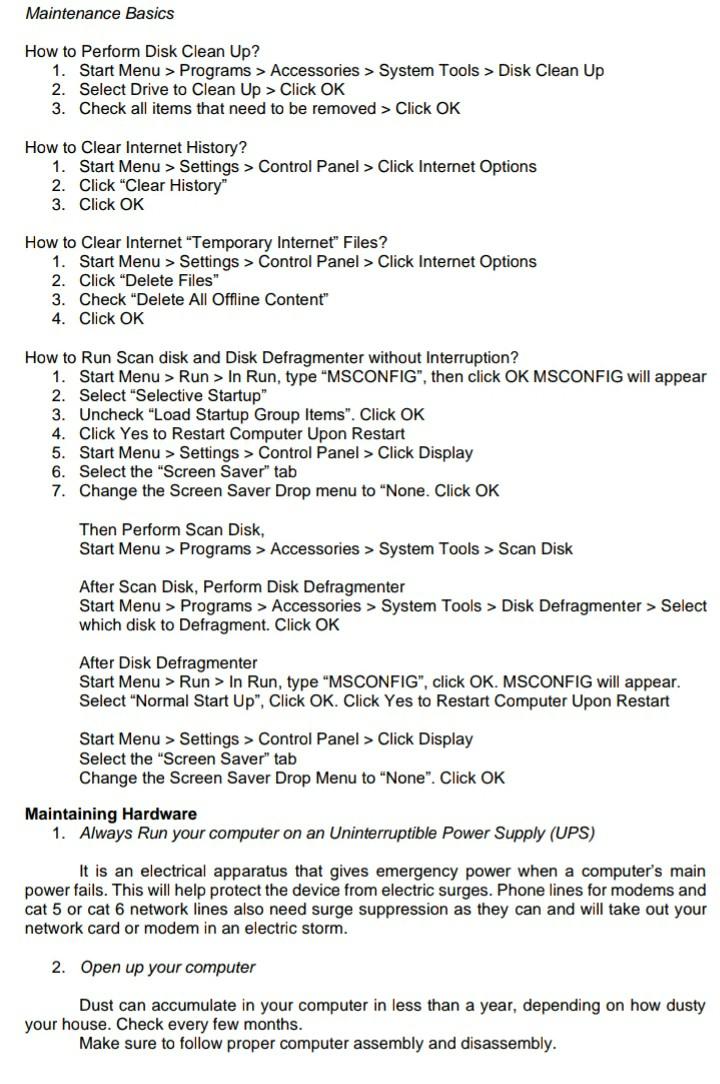
Maintaining Computer Systems and Networks A properly maintained computer gives higher speeds, may it be via RAM or on the Internet, regardless of hardware set-up and configurations. This lesson will give some tips on how to maintain computer systems and networks over time. Routine Maintenance Clean Browsers Use the computer's Disk Cleanup Utility included in the Windows System. In the same way, you can also download third party, freeware programs such as CCleaner to do the clean- up for you. Search and Delete Spyware and Viruses from the device Third party software like AVG Anti-Virus can be used for maintenance. Or use the Windows Security built in on Windows 10 devices. Defragment the hard drive routinely to keep the device running smoothly Local Disk (C:) Properties General Tool Hardware Sharing Enor checking This option will check the volume for ho Dreck Now Defragmentation This option will delegment files on the volume Deltagert Now OK Cancel el CAVITE STATE UNIVERSITY T3 CAMPUS Department of Information Technology ITEC 90 - Network Fundamentals Uninstall programs that are no longer used Delete files that are no longer needed. The freer space a computer has, the faster it will perform. The computer's performance will increase. Remove Startup Programs Use the msconfig command in the RUN command prompt to open up a window that will allow you to uncheck startup programs that are no longer used. Doing this will improve start up and boot down times a lot. Third party software such as CCleaner can also be used for this purpose. File Option View Processes Performance Aoy Sto Details Services Admin D Adobe Acrope. It stogo danno Sony Corpo Use your computer's disk management systems For windows, select Performance and Maintenance. Choose "Rearrance items on your hard disk" and "Free up space on your hard disk" or simply run Disk Cleanup. Dampfer OSIS You must en Derivater Posted by Window Maintenance Basics How to Perform Disk Clean Up? 1. Start Menu > Programs > Accessories > System Tools > Disk Clean Up 2. Select Drive to Clean Up > Click OK 3. Check all items that need to be removed > Click OK How to Clear Internet History? 1. Start Menu > Settings > Control Panel > Click Internet Options 2. Click "Clear History" 3. Click OK How to Clear Internet "Temporary Internet" Files? 1. Start Menu > Settings > Control Panel > Click Internet Options 2. Click "Delete Files" 3. Check "Delete All Offline Content" 4. Click OK How to Run Scan disk and Disk Defragmenter without Interruption? 1. Start Menu > Run > In Run, type "MSCONFIG", then click OK MSCONFIG will appear 2. Select "Selective Startup" 3. Uncheck "Load Startup Group Items". Click OK 4. Click Yes to Restart Computer Upon Restart 5. Start Menu > Settings > Control Panel > Click Display 6. Select the "Screen Saver" tab 7. Change the Screen Saver Drop menu to "None. Click OK Then Perform Scan Disk, Start Menu > Programs > Accessories > System Tools > Scan Disk After Scan Disk, Perform Disk Defragmenter Start Menu > Programs > Accessories > System Tools > Disk Defragmenter > Select which disk to Defragment. Click OK After Disk Defragmenter Start Menu > Run > In Run, type "MSCONFIG", click OK. MSCONFIG will appear. Select "Normal Start Up", Click OK. Click Yes to Restart Computer Upon Restart Start Menu > Settings > Control Panel > Click Display Select the "Screen Saver" tab Change the Screen Saver Drop Menu to "None". Click OK Maintaining Hardware 1. Always Run your computer on an Uninterruptible Power Supply (UPS) It is an electrical apparatus that gives emergency power when a computer's main power fails. This will help protect the device from electric surges. Phone lines for modems and cat 5 or cat 6 network lines also need surge suppression as they can and will take out your network card or modem in an electric storm. 2. Open up your computer Dust can accumulate in your computer in less than a year, depending on how dusty your house. Check every few months. Make sure to follow proper computer assembly and disassembly
Step by Step Solution
There are 3 Steps involved in it

Get step-by-step solutions from verified subject matter experts
 Study Help