







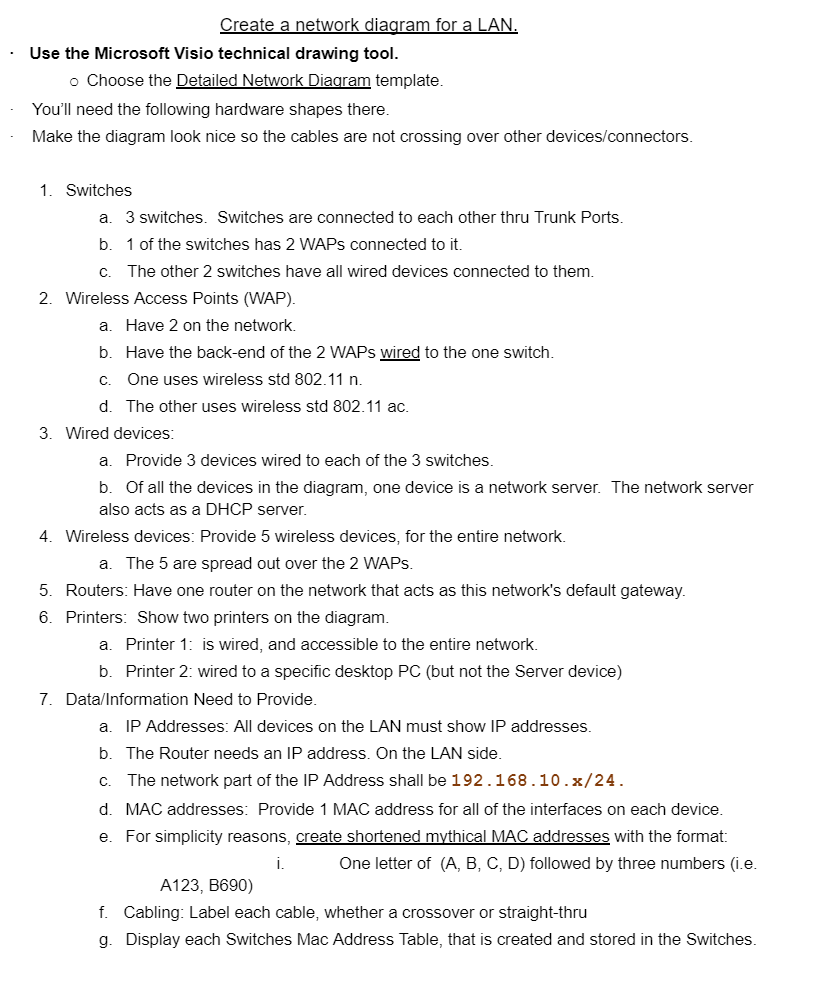
Question: Create a network diagram for a LAN. Use the Microsoft Visio technical drawing tool. Choose the Detailed Network Diaaram template. You'll need the following hardware
Create a network diagram for a LAN.
Use the Microsoft Visio technical drawing tool.
Choose the Detailed Network Diaaram template.
You'll need the following hardware shapes there.
Make the diagram look nice so the cables are not crossing over other devicesconnectors
Switches
a switches. Switches are connected to each other thru Trunk Ports.
b of the switches has WAPs connected to it
c The other switches have all wired devices connected to them.
Wireless Access Points WAP
a Have on the network.
b Have the backend of the WAPs wired to the one switch.
c One uses wireless std
d The other uses wireless std
Wired devices:
a Provide devices wired to each of the switches.
b Of all the devices in the diagram, one device is a network server. The network server
also acts as a DHCP server.
Wireless devices: Provide wireless devices, for the entire network.
a The are spread out over the WAPs.
Routers: Have one router on the network that acts as this network's default gateway.
Printers: Show two printers on the diagram.
a Printer : is wired, and accessible to the entire network.
b Printer : wired to a specific desktop PC but not the Server device
DataInformation Need to Provide.
a IP Addresses: All devices on the LAN must show IP addresses.
b The Router needs an IP address. On the LAN side.
c The network part of the IP Address shall be x
d MAC addresses: Provide MAC address for all of the interfaces on each device.
e For simplicity reasons, create shortened mythical MAC addresses with the format:
i One letter of followed by three numbers ie
A B
f Cabling: Label each cable, whether a crossover or straightthru
g Display each Switches Mac Address Table, that is created and stored in the Switches.
Step by Step Solution
There are 3 Steps involved in it
1 Expert Approved Answer
Step: 1 Unlock

Question Has Been Solved by an Expert!
Get step-by-step solutions from verified subject matter experts
Step: 2 Unlock
Step: 3 Unlock
 Study Help