







Question: Shelly Cashman Excel 2019 | Module 4: SAM Project la Final Figure 1: Loan Calculator Worksheet E F H Scenarios Loan Amount Annual Interest Rate
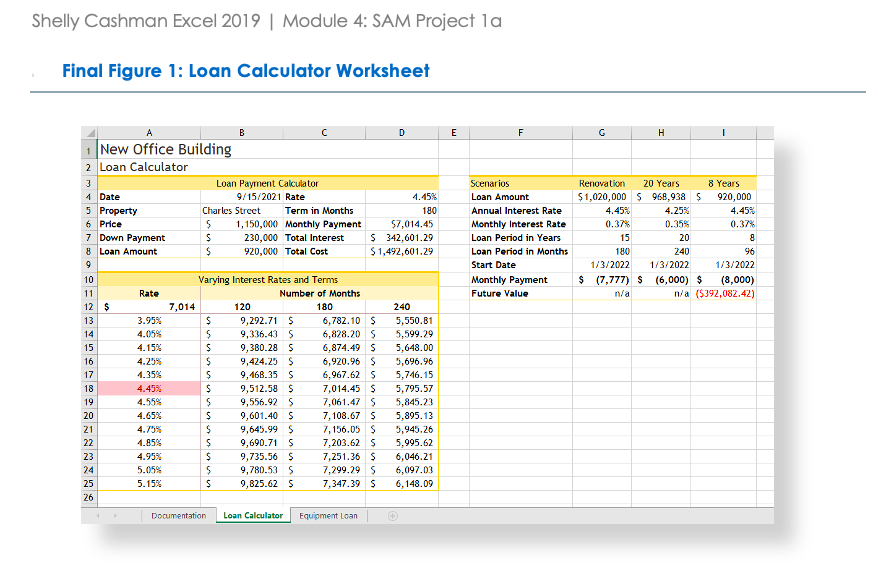
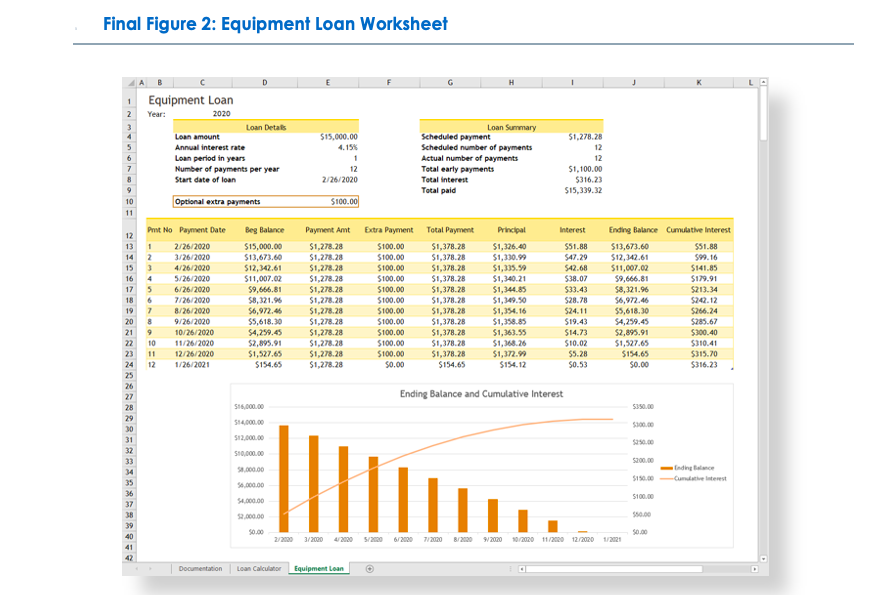
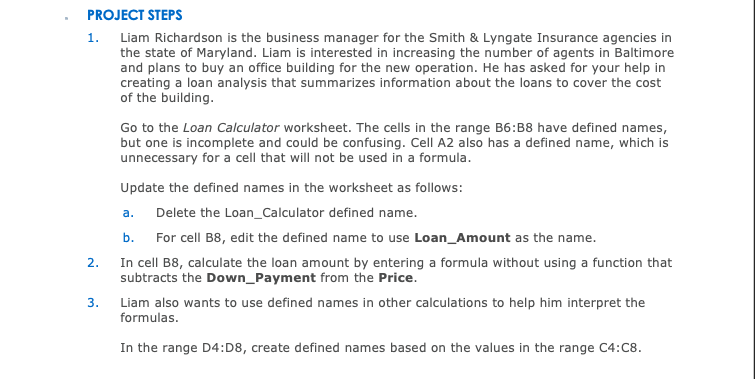
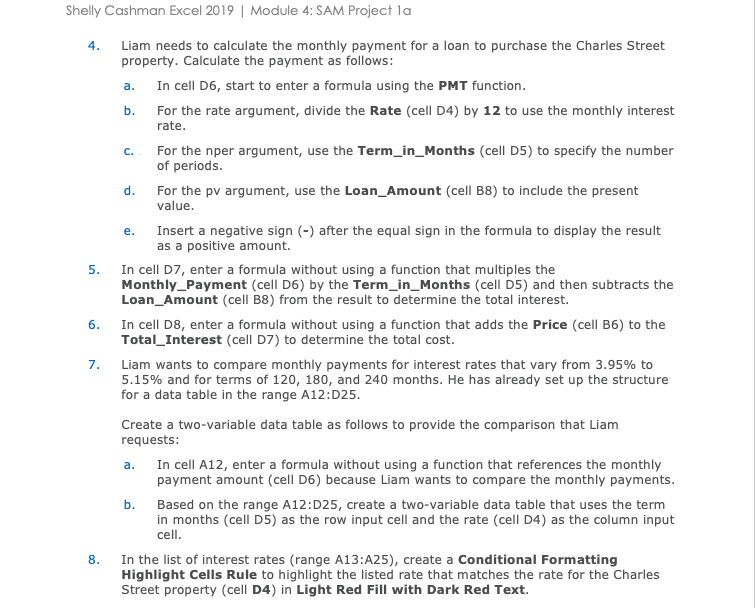
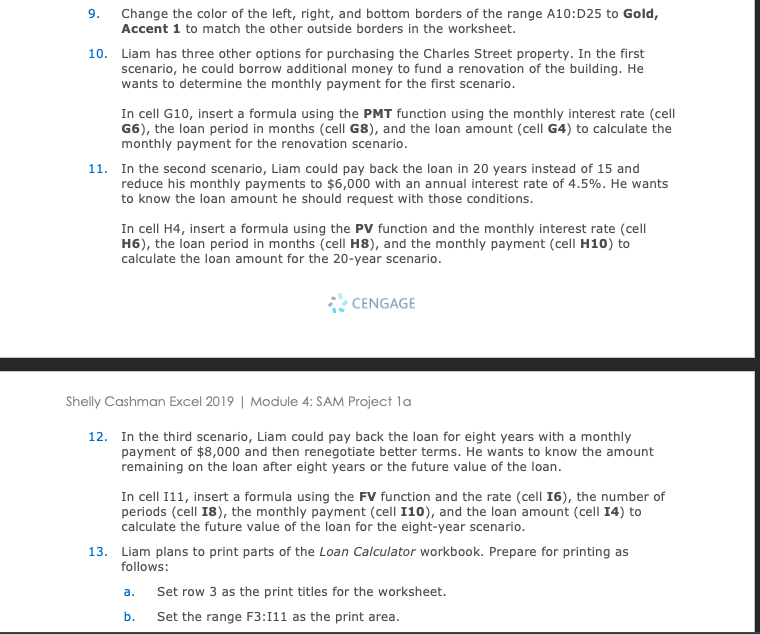
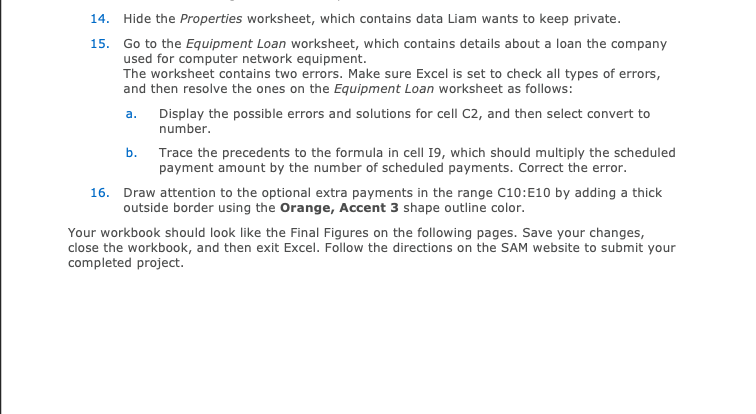
Shelly Cashman Excel 2019 | Module 4: SAM Project la Final Figure 1: Loan Calculator Worksheet E F H Scenarios Loan Amount Annual Interest Rate Monthly Interest Rate Loan Period in Years Loan Period in Months Start Date Monthly Payment Future Value Renovation 20 Years 8 Years $1,020,000 S 968,938 $ 920,000 4.45% 4.25% 4.45% 0.37% 0.35% 0.37% 15 20 8 180 240 96 1/3/2022 1/3/2022 1/3/2022 $ (7.777) S (6,000) $ (8,000) n/a n/a ($392,082.42) B D New Office Building 2 Loan Calculator 3 Loan Payment Calculator 1 Date 9/15/2021 Rate 4.15% 5 Property Charles Street Term in Months 180 6 Price 5 1,150,000 Monthly Payment $7,014.45 7 Down Payment $ 230,000 Total Interest $ 342,601.29 8 Loan Amount $ 920,000 Total Cost $ 1,492,601.29 9 10 Varying Interest Rates and Terms 11 Rate Number of Months 12 $ 7,014 120 180 240 13 3.95% $ 9,292.71 $ 6,782.10 S 5,550.B1 14 4.05% 5 9,336.435 6,828.20 S 5,599.29 15 4.15% $ 9,380.28 $ 6,874.49 $ 5,648.00 16 4.25% $ 9,424.25 5 6,920.96 $ 5,696.96 17 1.35% $ 9,468.355 6,967.62 S 5,746.15 18 4.45% $ 9,512.58 $ 7,014.45 $ 5,795.57 19 4.55% 5 9,556.925 7,061.47 S 5,845.23 20 4.65% 9,601.40 5 7,108.67 S 5,895.13 21 $ 9,645.99 $ 7, 156.05 S 5,945.26 22 1.85% $ 9,690.71 $ 7,203.62 S 5,995.62 23 4.95% $ 9,735.56 $ 7,251.36 $ 6,046.21 24 5.05% 5 9,780.535 7,299.29 $ 6,097.03 25 5.15% $ 9,825.625 7,347.39 $ 6,148.09 26 Documentation Loan Calculator Equipment Loan Final Figure 2: Equipment Loan Worksheet 1 Equipment Loan 2 Year: 2020 3 Loan Details Loan amount 5 Annual interest rate 6 Loan period in years Number of payments per year Start date of loan 10 Optional extra payments $15,000.00 4.15% 1 12 2/26/2020 Loan Summary Scheduled payment Scheduled number of payments Actual number of payments Total early payments Total interest Total paid 51.278.28 12 12 $1,100.00 $316.23 $15,339.32 $100.00 12 13 14 15 16 17 18 19 20 21 22 23 24 25 26 27 28 29 30 Print No Payment Date 1 2/26/2020 2 3/26/2020 3 4/26/2020 4 5/26/2020 5 6/26/2020 6 7/26/2020 7 8/26/2020 8 9/26/2020 9 10/26/2020 10 11/26/2020 11 12/26/2020 12 1/26/2021 Beg Balance $15,000.00 $13,673.60 $12,342.61 $11,007.02 $9,666.81 $8,321.96 56,972.46 $5,618.30 $4,259.45 $2,895.91 $1,527.65 $154.65 Payment Amt $1,278.28 $1,278.28 $1,278.28 $1,278.28 $1,278.28 $1,278.28 $1,278.28 $1,278.28 $1,278.28 $1,278.28 $1.278.28 $1,278.28 Extra Payment Total Payment $100.00 $1,378.28 $100.00 $1,378.28 $100.00 $1,378.28 $100.00 $1,378.28 $100.00 $1,378.28 $100.00 $1,378.28 $100.00 $1,378.28 $100.00 $1,378.28 $100.00 51,378.28 $100.00 $1,378.28 $100.00 $1,378.28 $0.00 $154.65 Principal $1,126.40 $1,330.99 $1,335.50 $1,340.21 $1,344.85 $1,349.50 $1,154.16 $1,358.85 $1,363.55 $1,168.26 $1,372.99 $154.12 Interest 551.88 $47.29 542.68 $38.07 $33.43 $28.78 524.11 $19.43 $14.73 $10.02 55.28 $0.53 Ending Balance Cumulative Interest $13,673.60 $51.88 $12,142.61 599.16 $11,007.02 $141.85 59,666.81 $179.91 $8,321.96 $213.34 56,972,46 $242.12 $5,618.30 $266.24 $4,259.45 $285.67 $2,895.91 $300.40 $1,527.65 $310.41 $154.65 $315.70 50.00 $316.23 Ending Balance and Cumulative Interest 516,000.00 $350.00 512,000.00 $10,000.00 5.000.00 50.000.00 5.000.00 5100.00 550.00 40 2/20203/2020/2020 7/2020 9 2020 10/2020 11/2000 12/2020 42 Documentation Loan Calculator Equipment Loan PROJECT STEPS 1. Liam Richardson is the business manager for the Smith & Lyngate Insurance agencies in the state of Maryland. Liam is interested in increasing the number of agents in Baltimore and plans to buy an office building for the new operation. He has asked for your help in creating a loan analysis that summarizes information about the loans to cover the cost of the building. Go to the Loan Calculator worksheet. The cells in the range B6:38 have defined names, but one is incomplete and could be confusing. Cell A2 also has a defined name, which is unnecessary for a cell that will not be used in a formula. Update the defined names in the worksheet as follows: Delete the Loan_Calculator defined name. For cell B8, edit the defined name to use Loan_Amount as the name. 2. In cell B8, calculate the loan amount by entering a formula without using a function that subtracts the Down_Payment from the Price. 3. Liam also wants to use defined names in other calculations to help him interpret the formulas. In the range D4:08, create defined names based on the values in the range C4:08. a. b. 14. Hide the Properties worksheet, which contains data Liam wants to keep private. 15. Go to the Equipment Loan worksheet, which contains details about a loan the company used for computer network equipment. The worksheet contains two errors. Make sure Excel is set to check all types of errors, and then resolve the ones on the Equipment Loan worksheet as follows: a. Display the possible errors and solutions for cell C2, and then select convert to number b. Trace the precedents to the formula in cell 19, which should multiply the scheduled payment amount by the number of scheduled payments. Correct the error. 16. Draw attention to the optional extra payments in the range C10:E10 by adding a thick outside border using the Orange, Accent 3 shape outline color. Your workbook should look like the Final Figures on the following pages. Save your changes, close the workbook, and then exit Excel. Follow the directions on the SAM website to submit your completed project. Shelly Cashman Excel 2019 | Module 4: SAM Project la Final Figure 1: Loan Calculator Worksheet E F H Scenarios Loan Amount Annual Interest Rate Monthly Interest Rate Loan Period in Years Loan Period in Months Start Date Monthly Payment Future Value Renovation 20 Years 8 Years $1,020,000 S 968,938 $ 920,000 4.45% 4.25% 4.45% 0.37% 0.35% 0.37% 15 20 8 180 240 96 1/3/2022 1/3/2022 1/3/2022 $ (7.777) S (6,000) $ (8,000) n/a n/a ($392,082.42) B D New Office Building 2 Loan Calculator 3 Loan Payment Calculator 1 Date 9/15/2021 Rate 4.15% 5 Property Charles Street Term in Months 180 6 Price 5 1,150,000 Monthly Payment $7,014.45 7 Down Payment $ 230,000 Total Interest $ 342,601.29 8 Loan Amount $ 920,000 Total Cost $ 1,492,601.29 9 10 Varying Interest Rates and Terms 11 Rate Number of Months 12 $ 7,014 120 180 240 13 3.95% $ 9,292.71 $ 6,782.10 S 5,550.B1 14 4.05% 5 9,336.435 6,828.20 S 5,599.29 15 4.15% $ 9,380.28 $ 6,874.49 $ 5,648.00 16 4.25% $ 9,424.25 5 6,920.96 $ 5,696.96 17 1.35% $ 9,468.355 6,967.62 S 5,746.15 18 4.45% $ 9,512.58 $ 7,014.45 $ 5,795.57 19 4.55% 5 9,556.925 7,061.47 S 5,845.23 20 4.65% 9,601.40 5 7,108.67 S 5,895.13 21 $ 9,645.99 $ 7, 156.05 S 5,945.26 22 1.85% $ 9,690.71 $ 7,203.62 S 5,995.62 23 4.95% $ 9,735.56 $ 7,251.36 $ 6,046.21 24 5.05% 5 9,780.535 7,299.29 $ 6,097.03 25 5.15% $ 9,825.625 7,347.39 $ 6,148.09 26 Documentation Loan Calculator Equipment Loan Final Figure 2: Equipment Loan Worksheet 1 Equipment Loan 2 Year: 2020 3 Loan Details Loan amount 5 Annual interest rate 6 Loan period in years Number of payments per year Start date of loan 10 Optional extra payments $15,000.00 4.15% 1 12 2/26/2020 Loan Summary Scheduled payment Scheduled number of payments Actual number of payments Total early payments Total interest Total paid 51.278.28 12 12 $1,100.00 $316.23 $15,339.32 $100.00 12 13 14 15 16 17 18 19 20 21 22 23 24 25 26 27 28 29 30 Print No Payment Date 1 2/26/2020 2 3/26/2020 3 4/26/2020 4 5/26/2020 5 6/26/2020 6 7/26/2020 7 8/26/2020 8 9/26/2020 9 10/26/2020 10 11/26/2020 11 12/26/2020 12 1/26/2021 Beg Balance $15,000.00 $13,673.60 $12,342.61 $11,007.02 $9,666.81 $8,321.96 56,972.46 $5,618.30 $4,259.45 $2,895.91 $1,527.65 $154.65 Payment Amt $1,278.28 $1,278.28 $1,278.28 $1,278.28 $1,278.28 $1,278.28 $1,278.28 $1,278.28 $1,278.28 $1,278.28 $1.278.28 $1,278.28 Extra Payment Total Payment $100.00 $1,378.28 $100.00 $1,378.28 $100.00 $1,378.28 $100.00 $1,378.28 $100.00 $1,378.28 $100.00 $1,378.28 $100.00 $1,378.28 $100.00 $1,378.28 $100.00 51,378.28 $100.00 $1,378.28 $100.00 $1,378.28 $0.00 $154.65 Principal $1,126.40 $1,330.99 $1,335.50 $1,340.21 $1,344.85 $1,349.50 $1,154.16 $1,358.85 $1,363.55 $1,168.26 $1,372.99 $154.12 Interest 551.88 $47.29 542.68 $38.07 $33.43 $28.78 524.11 $19.43 $14.73 $10.02 55.28 $0.53 Ending Balance Cumulative Interest $13,673.60 $51.88 $12,142.61 599.16 $11,007.02 $141.85 59,666.81 $179.91 $8,321.96 $213.34 56,972,46 $242.12 $5,618.30 $266.24 $4,259.45 $285.67 $2,895.91 $300.40 $1,527.65 $310.41 $154.65 $315.70 50.00 $316.23 Ending Balance and Cumulative Interest 516,000.00 $350.00 512,000.00 $10,000.00 5.000.00 50.000.00 5.000.00 5100.00 550.00 40 2/20203/2020/2020 7/2020 9 2020 10/2020 11/2000 12/2020 42 Documentation Loan Calculator Equipment Loan PROJECT STEPS 1. Liam Richardson is the business manager for the Smith & Lyngate Insurance agencies in the state of Maryland. Liam is interested in increasing the number of agents in Baltimore and plans to buy an office building for the new operation. He has asked for your help in creating a loan analysis that summarizes information about the loans to cover the cost of the building. Go to the Loan Calculator worksheet. The cells in the range B6:38 have defined names, but one is incomplete and could be confusing. Cell A2 also has a defined name, which is unnecessary for a cell that will not be used in a formula. Update the defined names in the worksheet as follows: Delete the Loan_Calculator defined name. For cell B8, edit the defined name to use Loan_Amount as the name. 2. In cell B8, calculate the loan amount by entering a formula without using a function that subtracts the Down_Payment from the Price. 3. Liam also wants to use defined names in other calculations to help him interpret the formulas. In the range D4:08, create defined names based on the values in the range C4:08. a. b. 14. Hide the Properties worksheet, which contains data Liam wants to keep private. 15. Go to the Equipment Loan worksheet, which contains details about a loan the company used for computer network equipment. The worksheet contains two errors. Make sure Excel is set to check all types of errors, and then resolve the ones on the Equipment Loan worksheet as follows: a. Display the possible errors and solutions for cell C2, and then select convert to number b. Trace the precedents to the formula in cell 19, which should multiply the scheduled payment amount by the number of scheduled payments. Correct the error. 16. Draw attention to the optional extra payments in the range C10:E10 by adding a thick outside border using the Orange, Accent 3 shape outline color. Your workbook should look like the Final Figures on the following pages. Save your changes, close the workbook, and then exit Excel. Follow the directions on the SAM website to submit your completed project
Step by Step Solution
There are 3 Steps involved in it

Get step-by-step solutions from verified subject matter experts
 Study Help