







Question: Activity 2 : EXPLORING REAL - LIFE DHCP IP ADDRESS ALLOCATION PROCESS. Background The DHCP assigns IP addresses along with network parameters. The ipconfig Windows
Activity : EXPLORING REALLIFE DHCP IP ADDRESS ALLOCATION PROCESS.
Background
The DHCP assigns IP addresses along with network parameters. The ipconfig Windows command and its variations can be used to explore the DHCP process.
Objective
To test the knowledge of how DHCP works, using ipconfig command and its variation to enable a DHCP exchange.
Requirements
Textbook
Internet connectivity.
Download and install Wireshark.
Tasks
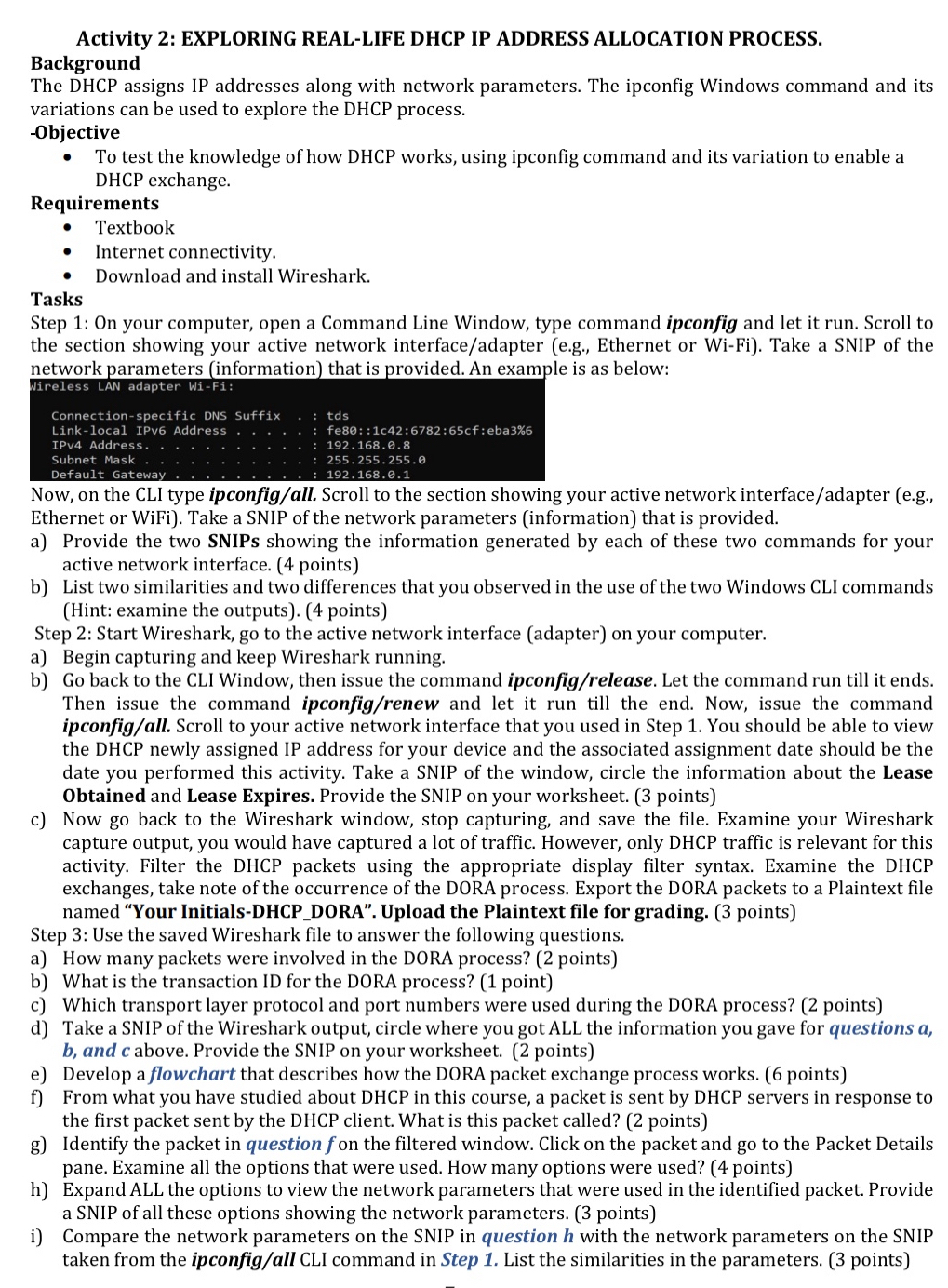
Step : On your computer, open a Command Line Window, type command ipconfig and let it run. Scroll to the section showing your active network interfaceadapter eg Ethernet or WiFi Take a SNIP of the network parameters information that is provided. An example is as below:
Nireless LAN adapter WiFi:
Connectionspecific DNS Suffix : tds
Linklocal IPv Address : fe::c::cf:eba
IPv Address. :
Subnet Mask :
Default Gateway :
Now, on the CLI type ipconfigall Scroll to the section showing your active network interfaceadapter eg Ethernet or WiFi Take a SNIP of the network parameters information that is provided.
a Provide the two SNIPs showing the information generated by each of these two commands for your active network interface. points
b List two similarities and two differences that you observed in the use of the two Windows CLI commands Hint: examine the outputs points
Step : Start Wireshark, go to the active network interface adapter on your computer.
a Begin capturing and keep Wireshark running.
b Go back to the CLI Window, then issue the command ipconfigrelease Let the command run till it ends. Then issue the command ipconfigrenew and let it run till the end. Now, issue the command ipconfigall Scroll to your active network interface that you used in Step You should be able to view the DHCP newly assigned IP address for your device and the associated assignment date should be the date you performed this activity. Take a SNIP of the window, circle the information about the Lease Obtained and Lease Expires. Provide the SNIP on your worksheet. points
c Now go back to the Wireshark window, stop capturing, and save the file. Examine your Wireshark capture output, you would have captured a lot of traffic. However, only DHCP traffic is relevant for this activity. Filter the DHCP packets using the appropriate display filter syntax. Examine the DHCP exchanges, take note of the occurrence of the DORA process. Export the DORA packets to a Plaintext file named "Your InitialsDHCPDORA". Upload the Plaintext file for grading. points
Step : Use the saved Wireshark file to answer the following questions.
a How many packets were involved in the DORA process? points
b What is the transaction ID for the DORA process? point
c Which transport layer protocol and port numbers were used during the DORA process? points
d Take a SNIP of the Wireshark output, circle where you got ALL the information you gave for questions and above. Provide the SNIP on your worksheet. points
e Develop a flowchart that describes how the DORA packet exchange process works. points
f From what you have studied about DHCP in this course, a packet is sent by DHCP servers in response to the first packet sent by the DHCP client. What is this packet called? points
g Identify the packet in question on the filtered window. Click on the packet and go to the Packet Details pane. Examine all the options that were used. How many options were used? points
h Expand ALL the options to view the network parameters that were used in the identified packet. Provide a SNIP of all these options showing the network parameters. points
i Compare the network parameters on the SNIP in question with the network parameters on the SNIP taken from the ipconfigall CLI command in Step List the similarities in the parameters. points
Step by Step Solution
There are 3 Steps involved in it
1 Expert Approved Answer
Step: 1 Unlock

Question Has Been Solved by an Expert!
Get step-by-step solutions from verified subject matter experts
Step: 2 Unlock
Step: 3 Unlock
 Study Help