







Question: Open the Colors Solution.sln file contained in the VB 9 e Chap 0 1 Colors Solution designer window. The interface contains one label
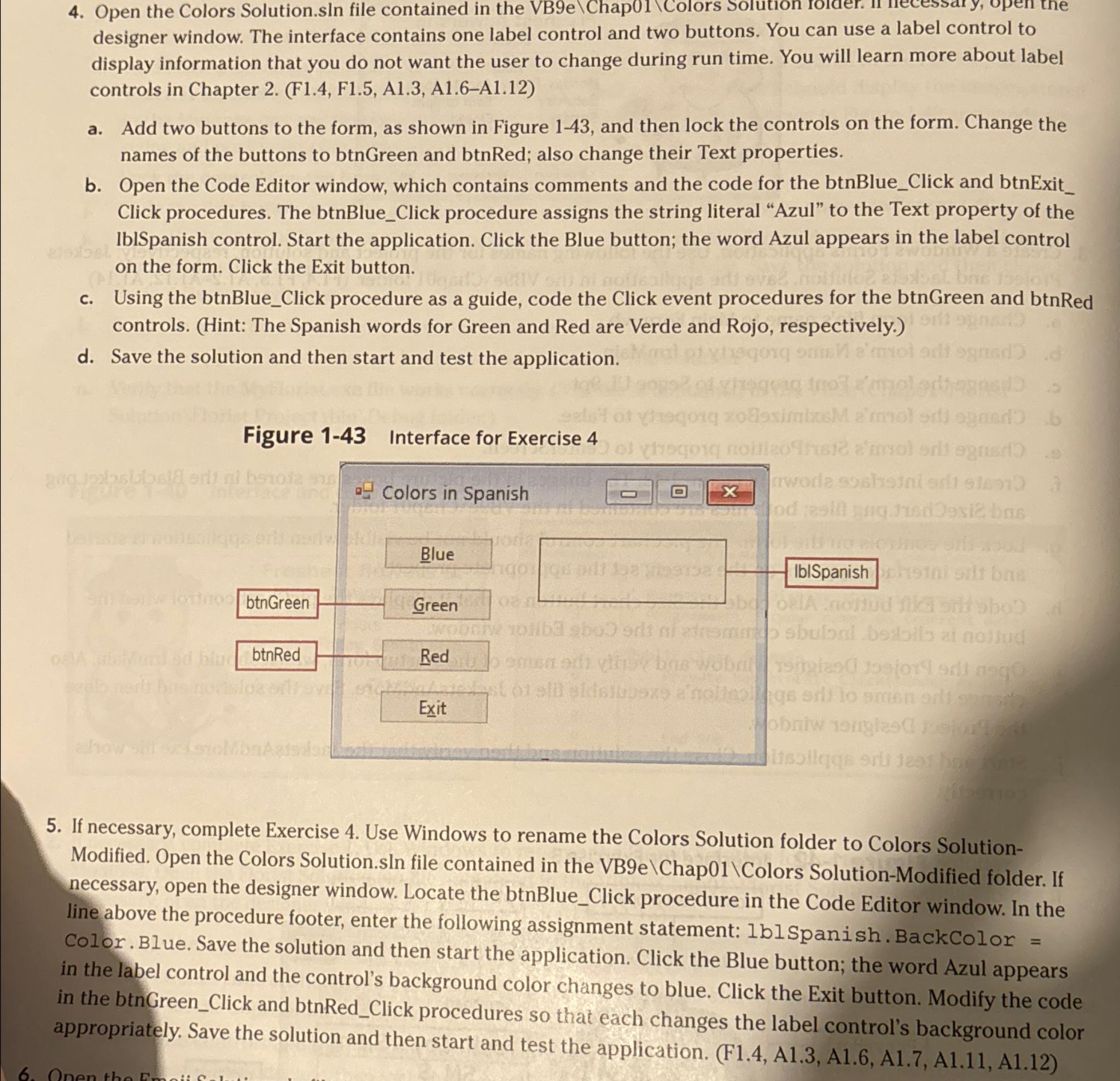
Open the Colors Solution.sln file contained in the VBe ChapColors Solution designer window. The interface contains one label control and two buttons. You can use a label control to display information that you do not want the user to change during run time. You will learn more about label controls in Chapter F F A AA
a Add two buttons to the form, as shown in Figure and then lock the controls on the form. Change the names of the buttons to btnGreen and btnRed; also change their Text properties.
b Open the Code Editor window, which contains comments and the code for the btnBlueClick and btnExit Click procedures. The btnBlueClick procedure assigns the string literal "Azul" to the Text property of the lblSpanish control. Start the application. Click the Blue button; the word Azul appears in the label control on the form. Click the Exit button.
c Using the btnBlueClick procedure as a guide, code the Click event procedures for the btnGreen and btnRed controls. Hint: The Spanish words for Green and Red are Verde and Rojo, respectively.
d Save the solution and then start and test the application.
If necessary, complete Exercise Use Windows to rename the Colors Solution folder to Colors SolutionModified. Open the Colors Solution.sln file contained in the VBe ChapColors SolutionModified folder. If necessary, open the designer window. Locate the btnBlueClick procedure in the Code Editor window. In the line above the procedure footer, enter the following assignment statement: blSpanish.BackColor Color. Blue. Save the solution and then start the application. Click the Blue button; the word Azul appears in the label control and the control's background color changes to blue. Click the Exit button. Modify the code in the btnGreenClick and btnRedClick procedures so that each changes the label control's background color appropriately. Save the solution and then start and test the application. F A A A A A
SEND A PICTURE OF THE DESIGNER SCREEN AND THE CODE SCREEN
Step by Step Solution
There are 3 Steps involved in it
1 Expert Approved Answer
Step: 1 Unlock

Question Has Been Solved by an Expert!
Get step-by-step solutions from verified subject matter experts
Step: 2 Unlock
Step: 3 Unlock
 Study Help