Question: SMILEY PNG Assignment Search DuckDuckGo or type a URI Assignment Tasks To help you organize your approach, detailed instructions are provided below in the form
SMILEY PNG 
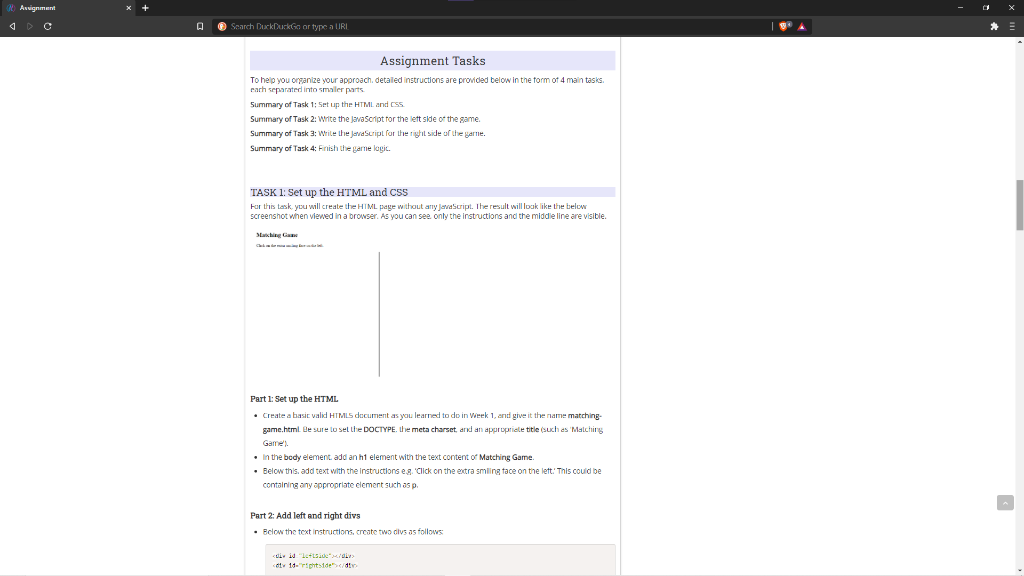
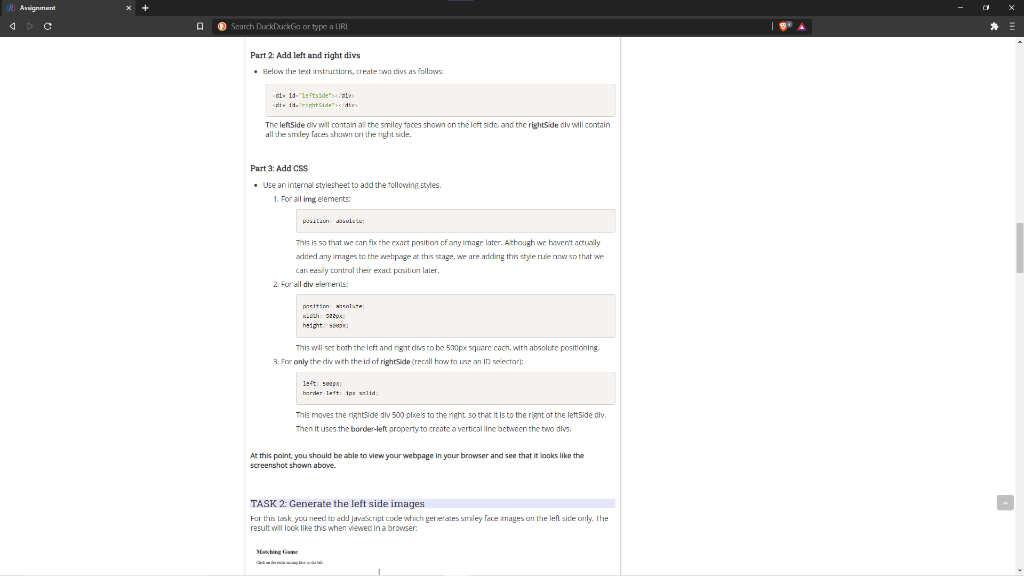
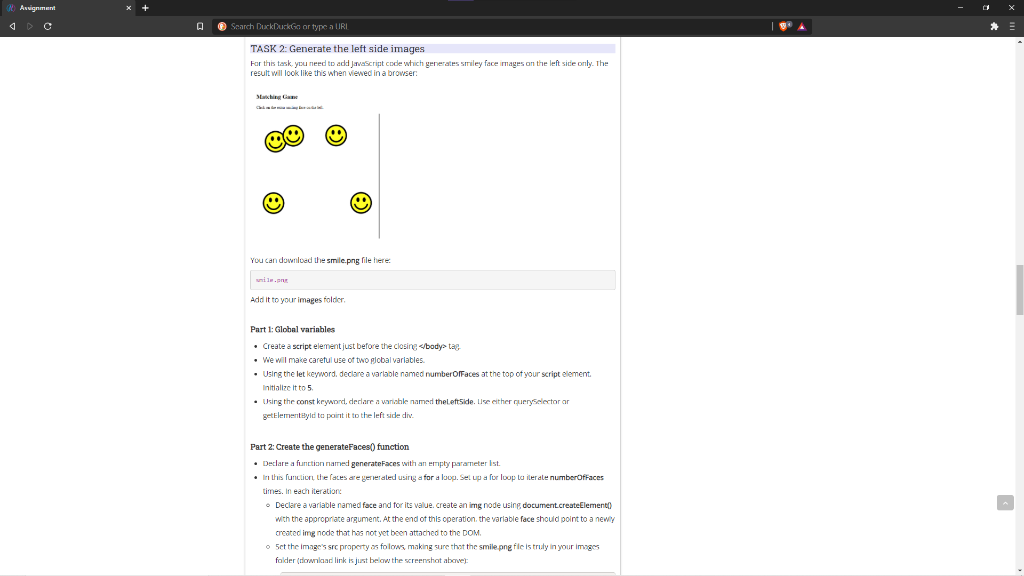
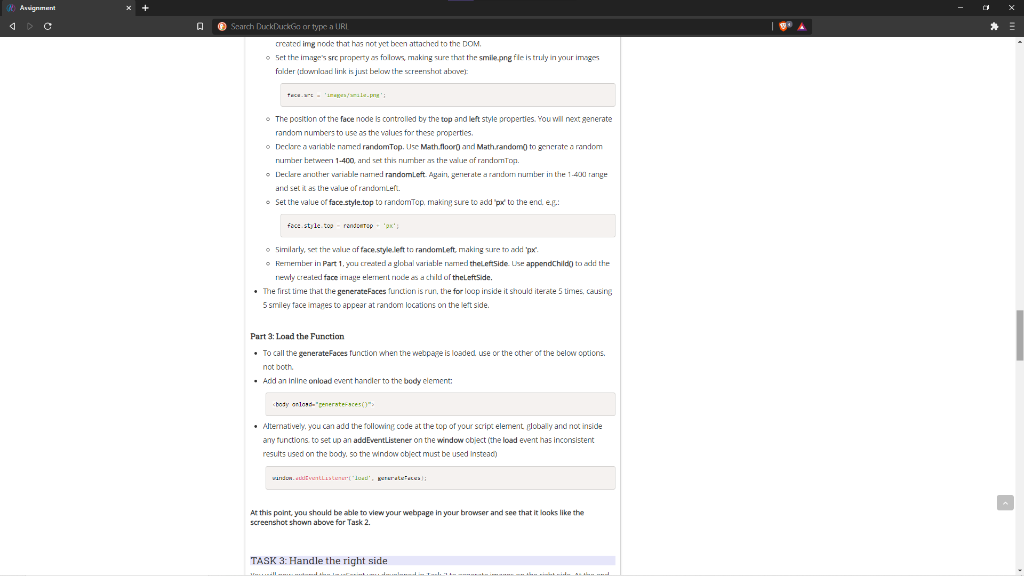
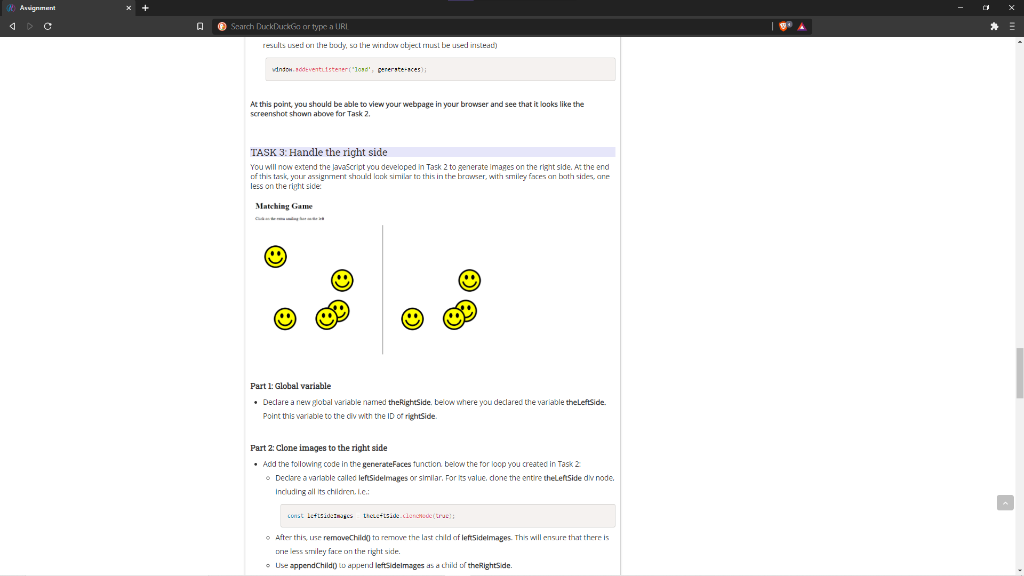
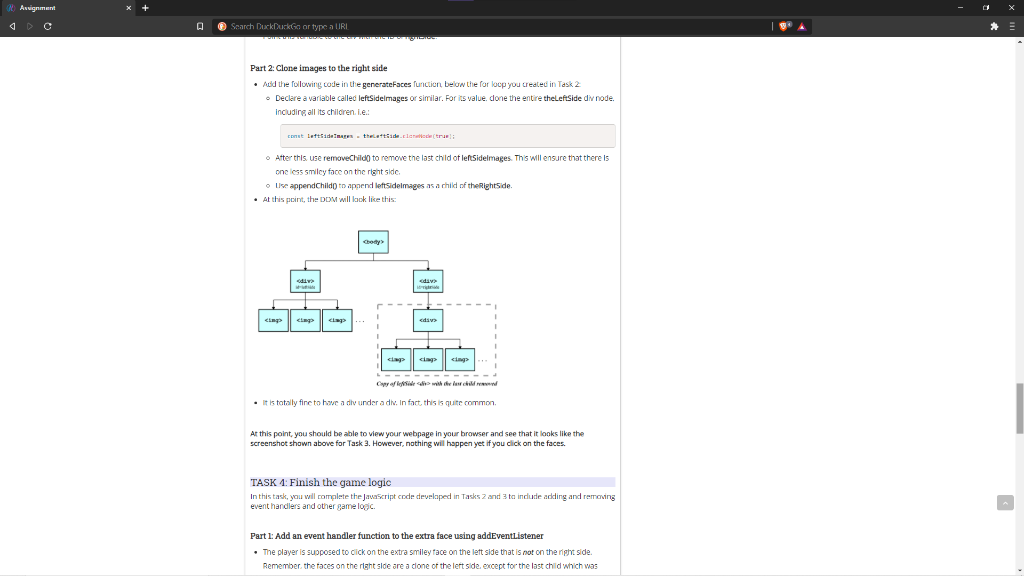
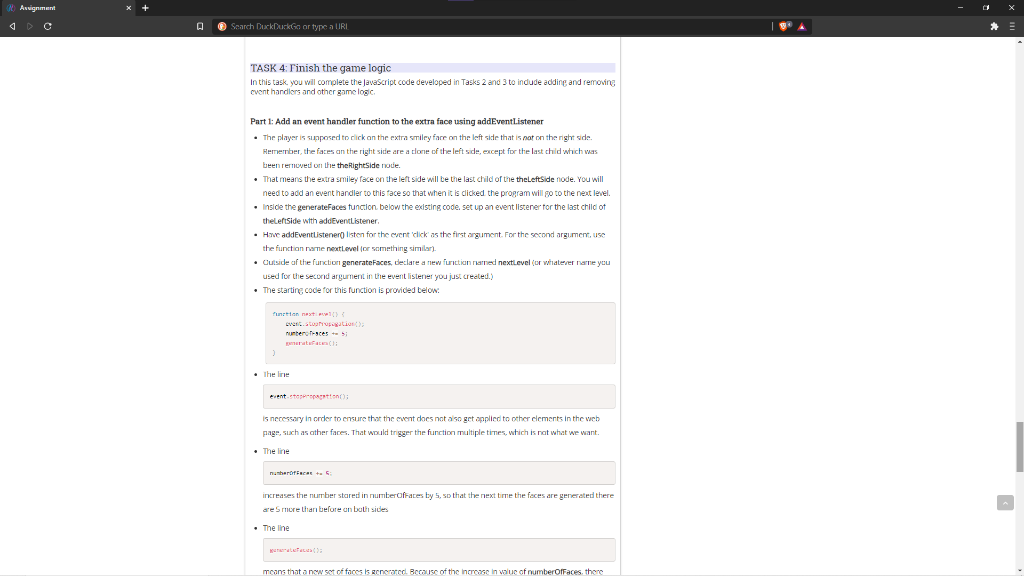
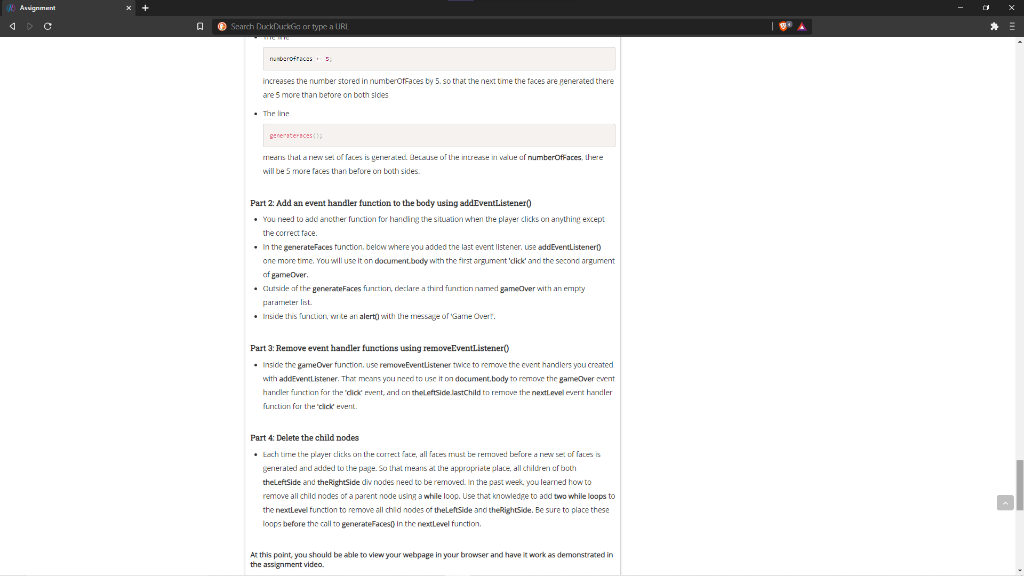
Assignment Search DuckDuckGo or type a URI Assignment Tasks To help you organize your approach, detailed instructions are provided below in the form of 4 main tasks. rarh separated into smaller parts Summary of Task 1: Set up the HTML and CSS. Summary of Task 2: Write the JavaScript for the left side of the game. Summary of Task 2: Write the JavaScript for the right side of the garne. Summary Task 4: Finish the warnelogic TASK 1: Set up the HTML and CSS Karthis task, you will create the HTML page without anyjavaScript. The result will look like the below screenshot when viewed in a browser. As you can see only the instructions and the middle line are visible. Part 1: Set up the HTML Create a basit valid HTML document as you learned to do in Week 1, and give it the name matching game.html Be sure to set the DOCTYPE. the meta charset and an appropriate title (such as Malching Game' . In the body element add an ht element with the text content of Matching Game. . Below this. add text with the instructions eg Click on the extra smiling tace on the left. This could be containing any appropriate element such as p. Part 2: Add left and right divs Below the text instructions, create two divs as follows 14 14. I pit 14, 4: Assignment A @ Search DuckDuckGo or type a URL Part 2: Add left and right divs Below the text instructions, create two is as follows d 11-letid"> The leftSide div will contain all the smiley faces shown on the left side and the right side dlu will contain all the smiley faces shown on the right side. Part 3: Add CSS Use an internal stylesheet to add the following styles. 1. For all ing elements pusila Jasul. This is so that we can ft the exact position of any image later. Although we haven't actually added any images to the webpage at this stage, we are ariding this style rule now so that we can easily control the exact position later 2. For all div elements prettin: en Loth: 32px height: This will set toth the Icft and right dus to be 500px square cach, with absolute positioning 3. For only the div with the id of rightside (rerall how to use an ID selector): left top bardar lattine wild This moves the rightside div 500 pixels to the night so that it is to the right of the left side dlv. Then it uses the border-left property to create a vertical line between the two divs. At this point, you should be able to view your webpage in your browser and see that it looks like the screenshot shown above. TASK 2: Generate the left side images For this task you need to add Javascript code which generales Smiley face images on the left side only. The result will look like this when viewed in a browser Satire Assignment Search DuckDuckGo or type a URI TASK 2: Generate the left side images For this task, you need to add JavaScript code which generates smiley face images on the left side only. The result will look like this when viewed in a browser You can download the smile.png file here. Add it to your images folder Part 1: Global variables Create a script element just before the closing . We will make careful use of two global variables. . Using the let keyword declare a variable named numberOfFaces at the top of your script element Initialize it to 5 Using the const keyword, derlare a variable named the left side. Lise either querySelector ar getElementById to point it to the left side div Part 2: Create the generateFaces() function Declare a function named generateFaces with an empty parameter ist . In this function, the faces are generated using a for a loop. Set up a lor loop literale numberOfFaces times in each iteration Declare a variable named face and for its value. create animg node using document.createElement with the appropriate argument. At the end of this operation, the variable face should point to a newly created img node that has not yet been attached to the DOM. 5ct the images are property as folows, making sure that the smile.png file is truly in your images folder (ownload link is just below the screenshot above): Assignment Search DuckDuckGo or type a URL created img node that has not yet been attached to the DOM. Set the image's src property as follows, making sure that the smile.png file is truly in your images folder (towad link is just below the screenshot above): The position of the face node is controlled by the top and left style properties. You will next generate random numbers to use as the values for these properties o Declare a variable named randomTop. Use Math.floor and Math.random) to generate a random number between 1-400 and set this number as the value of randomo. Leclere another variable named randomLeft Again, generate a random number in the 1.400 range and set it as the value ofrendoleft. Set the value of face style.top to randomTop. making sure to add to the end er face style.toprendo Similarly, set the value of face.style.left to randomleft, making sure to add 'px kermember in Part 1, you created a global variable need theLeftsideUse appendChild to add the newly created face image element modes a child of theLeftSide. The first time that the generateFaces function is run, the for loop inside it should iterate 5 times, causing 5 smiley face images to appear at random locations on the left side. Part 3: Load the Function To call the generateFaces function when the webpage is loaded use or the other of the below options. not bort Add an inline onload event handler to the body element: boty on onderstes()" Alternatively, you can add the following code at the top of your script element plobally and not inside any functions to set up an addEventListener on the window object (the load event has inconsistent results used on the body, so the window object must be used instead) window.adventListener los reali At this point, you should be able to view your webpage in your browser and see that it looks like the screenshot shown above for Task 2. TASK 3: Handle the right side Assignment Search DuckDuckGo or type a URI results used on the body, so the window object must be used inslet) window.ovter("lond', pererstences At this point, you should be able to view your webpage in your browser and see that it looks like the screenshot shown above for Task 2 TASK 3: Handle the right side You will now extend the JavaScript you developed in Task 2 to generate images on the right side. At the end of this task your assignment should look similar to this in the browser, with smiley faces on both sides, ane less on the right side Matching Game Part 1: Global variable Declare a new global variable named the RightSide, below where you declared the variable the LeftSide Point this variable to the div with the ID of rightSide. Part 2: Clone images to the right side . Add the following code in the generateFaces function below the for loop you created in Task 2 o Declare a variable called leftSidelmages or similar. For its value done the entire the leftSide div node. Including all its children. ic. const Lettsideways thccet.de concedere! After this use removeChild) to remove the last child af leftSidelmages. This will ensure that there is De less smiley face on the right side. Use appendChild to append leftsidelmages as a child of the Rightside Assignment Search DuckDuckGo or type a URL Part 2: Clone images to the right side . Add the following code in the generateFaces function below the for loop you created in Task 2 Declere a variable called leftSidelmages or similar. For value, done the entire theLeft Side dinode including all its children. Le Come tuttares the declaratur After this use removeChild to remove the last child of leftSidelmages. This will ensure that there is one less smiley face on the right side Lise appendChild to append left sidelmages as a child of the Rightside. . At this point, the DDM will look like this: die Ciap chap lap . It is totally fine to have a divunder a div. In fact, this is quite common At this point, you should be able to view your webpage in your browser and see that it looks like the screenshot shown above for Task 3. However, nothing will happen yet if you click on the faces. TASK 1: Finish the game logic In this task, you will complete the JavaScript code developed in Tasks 2 and 3 to include adding and removing event handlers and other game loc Part 1: Add an event handler function to the extra face using addEventListener . The player is supposed to click on the extra smiley face on the left side that is not on the right side. Remember the faces on the right side are a done of the left side, except for the last child which was Assignment A @ Search DuckDuckGo or type a URL TASK 4: Finish the game logic In this task. you will complete the JavaScript code developed in Tasks 2 and 3 to include adding and removing cvent handlers and other game logic Part 1: Add an event handler function to the extra face using addEventListener The player is supposed to click on the extra miley fare on the left side that is not on the right side Hemember, the faces an the right side are a lone of the left side, except for the last child which was been removed on the the RightSide node. . That means the extra smiley face on the left side will be the last child of the theLeftSide node. You will need to add an event handler to this face so that when it is clicked the program will go to the next level. Inside the generateFaces function below the existing code. set up an event listener for the last child of theleftSide with addEventListener Have addEventListener listen for the event click as the first argument. For the second argument, use the function we next level or something similar) Cutside of the function generateFaces, declare a new function named nextlevel (or whatever name you used for the second argument in the event listener you just created.) The starting code for this function is provided below: functionet versation numbero sces the line evento! is necessary in order to ensure that the event does not also get applied to other clements in the web page, such as ather faces. That would trigger the function multiple times, which is not what we want The line nebarot Face + increases the number stared in number faces by 5, so that the next time the faces are generated there are more than before on both sides The line means that a now set of faces is generateri Because of the increase in value of numberOfFaces, there Assignment Search DuckDuckGo or type a URL nuberofraces increases the number stored in numberOfFaces by 5. so that the next time the faces are generated there are 5 more than before on both sides The line generateraces means that a new set of faces is generated Belause of the increase in value of numberOfFaces, there will be 5 more faces than before on both sides. Part 2: Add an event handler function to the body using addEventListener() . You need to add another function for handling the situation when the player clicks on anything except the correct face. . In the generateFaces function below where you added the last event listener. use addEventListener) one more time. You will use it on document body with the first argument'click' and the second argument of gameOver. Cutside of the generateFaces function, declare a third fanction named game Over with an empty parameter list Inside this function, write an alert with the message of Game Overt. Part 3: Remove event handler functions using removeEventListener() . Inside the game Over function, use removeEventListener twice to remove the event handlers you created with addEventListener. That means you need to use it on document.body to remove the game Over event handler function for the dick event, and on thel.ftside lastChild to remove the nextlevel event handler function for the "click event. Part 4: Delete the child podes Each time the player click on the correct fate, all fates must be removed before a new set of facesis Sererated and added to the page. So that means at the appropriate place, all children of both theleftSide and the RightSide div nodes need to be removed in the past week, you learned how to remove all child nodes of a parent node using a while loop. Use that knowledge to add two while loops to the nextlevel function to remove all child nodes of the LeftSide and theRightSide. Be sure to place these Loops before the call to generateFaces in the nextlevel function At this point, you should be able to view your webpage in your browser and have it work as demonstrated in the assignment video Assignment Search DuckDuckGo or type a URI Assignment Tasks To help you organize your approach, detailed instructions are provided below in the form of 4 main tasks. rarh separated into smaller parts Summary of Task 1: Set up the HTML and CSS. Summary of Task 2: Write the JavaScript for the left side of the game. Summary of Task 2: Write the JavaScript for the right side of the garne. Summary Task 4: Finish the warnelogic TASK 1: Set up the HTML and CSS Karthis task, you will create the HTML page without anyjavaScript. The result will look like the below screenshot when viewed in a browser. As you can see only the instructions and the middle line are visible. Part 1: Set up the HTML Create a basit valid HTML document as you learned to do in Week 1, and give it the name matching game.html Be sure to set the DOCTYPE. the meta charset and an appropriate title (such as Malching Game' . In the body element add an ht element with the text content of Matching Game. . Below this. add text with the instructions eg Click on the extra smiling tace on the left. This could be containing any appropriate element such as p. Part 2: Add left and right divs Below the text instructions, create two divs as follows
14 14. I pit 14, 4: Assignment A @ Search DuckDuckGo or type a URL Part 2: Add left and right divs Below the text instructions, create two is as follows d 11-letid"> The leftSide div will contain all the smiley faces shown on the left side and the right side dlu will contain all the smiley faces shown on the right side. Part 3: Add CSS Use an internal stylesheet to add the following styles. 1. For all ing elements pusila Jasul. This is so that we can ft the exact position of any image later. Although we haven't actually added any images to the webpage at this stage, we are ariding this style rule now so that we can easily control the exact position later 2. For all div elements prettin: en Loth: 32px height: This will set toth the Icft and right dus to be 500px square cach, with absolute positioning 3. For only the div with the id of rightside (rerall how to use an ID selector): left top bardar lattine wild This moves the rightside div 500 pixels to the night so that it is to the right of the left side dlv. Then it uses the border-left property to create a vertical line between the two divs. At this point, you should be able to view your webpage in your browser and see that it looks like the screenshot shown above. TASK 2: Generate the left side images For this task you need to add Javascript code which generales Smiley face images on the left side only. The result will look like this when viewed in a browser Satire Assignment Search DuckDuckGo or type a URI TASK 2: Generate the left side images For this task, you need to add JavaScript code which generates smiley face images on the left side only. The result will look like this when viewed in a browser You can download the smile.png file here. Add it to your images folder Part 1: Global variables Create a script element just before the closing . We will make careful use of two global variables. . Using the let keyword declare a variable named numberOfFaces at the top of your script element Initialize it to 5 Using the const keyword, derlare a variable named the left side. Lise either querySelector ar getElementById to point it to the left side div Part 2: Create the generateFaces() function Declare a function named generateFaces with an empty parameter ist . In this function, the faces are generated using a for a loop. Set up a lor loop literale numberOfFaces times in each iteration Declare a variable named face and for its value. create animg node using document.createElement with the appropriate argument. At the end of this operation, the variable face should point to a newly created img node that has not yet been attached to the DOM. 5ct the images are property as folows, making sure that the smile.png file is truly in your images folder (ownload link is just below the screenshot above): Assignment Search DuckDuckGo or type a URL created img node that has not yet been attached to the DOM. Set the image's src property as follows, making sure that the smile.png file is truly in your images folder (towad link is just below the screenshot above): The position of the face node is controlled by the top and left style properties. You will next generate random numbers to use as the values for these properties o Declare a variable named randomTop. Use Math.floor and Math.random) to generate a random number between 1-400 and set this number as the value of randomo. Leclere another variable named randomLeft Again, generate a random number in the 1.400 range and set it as the value ofrendoleft. Set the value of face style.top to randomTop. making sure to add to the end er face style.toprendo Similarly, set the value of face.style.left to randomleft, making sure to add 'px kermember in Part 1, you created a global variable need theLeftsideUse appendChild to add the newly created face image element modes a child of theLeftSide. The first time that the generateFaces function is run, the for loop inside it should iterate 5 times, causing 5 smiley face images to appear at random locations on the left side. Part 3: Load the Function To call the generateFaces function when the webpage is loaded use or the other of the below options. not bort Add an inline onload event handler to the body element: boty on onderstes()" Alternatively, you can add the following code at the top of your script element plobally and not inside any functions to set up an addEventListener on the window object (the load event has inconsistent results used on the body, so the window object must be used instead) window.adventListener los reali At this point, you should be able to view your webpage in your browser and see that it looks like the screenshot shown above for Task 2. TASK 3: Handle the right side Assignment Search DuckDuckGo or type a URI results used on the body, so the window object must be used inslet) window.ovter("lond', pererstences At this point, you should be able to view your webpage in your browser and see that it looks like the screenshot shown above for Task 2 TASK 3: Handle the right side You will now extend the JavaScript you developed in Task 2 to generate images on the right side. At the end of this task your assignment should look similar to this in the browser, with smiley faces on both sides, ane less on the right side Matching Game Part 1: Global variable Declare a new global variable named the RightSide, below where you declared the variable the LeftSide Point this variable to the div with the ID of rightSide. Part 2: Clone images to the right side . Add the following code in the generateFaces function below the for loop you created in Task 2 o Declare a variable called leftSidelmages or similar. For its value done the entire the leftSide div node. Including all its children. ic. const Lettsideways thccet.de concedere! After this use removeChild) to remove the last child af leftSidelmages. This will ensure that there is De less smiley face on the right side. Use appendChild to append leftsidelmages as a child of the Rightside Assignment Search DuckDuckGo or type a URL Part 2: Clone images to the right side . Add the following code in the generateFaces function below the for loop you created in Task 2 Declere a variable called leftSidelmages or similar. For value, done the entire theLeft Side dinode including all its children. Le Come tuttares the declaratur After this use removeChild to remove the last child of leftSidelmages. This will ensure that there is one less smiley face on the right side Lise appendChild to append left sidelmages as a child of the Rightside. . At this point, the DDM will look like this: die Ciap chap lap . It is totally fine to have a divunder a div. In fact, this is quite common At this point, you should be able to view your webpage in your browser and see that it looks like the screenshot shown above for Task 3. However, nothing will happen yet if you click on the faces. TASK 1: Finish the game logic In this task, you will complete the JavaScript code developed in Tasks 2 and 3 to include adding and removing event handlers and other game loc Part 1: Add an event handler function to the extra face using addEventListener . The player is supposed to click on the extra smiley face on the left side that is not on the right side. Remember the faces on the right side are a done of the left side, except for the last child which was Assignment A @ Search DuckDuckGo or type a URL TASK 4: Finish the game logic In this task. you will complete the JavaScript code developed in Tasks 2 and 3 to include adding and removing cvent handlers and other game logic Part 1: Add an event handler function to the extra face using addEventListener The player is supposed to click on the extra miley fare on the left side that is not on the right side Hemember, the faces an the right side are a lone of the left side, except for the last child which was been removed on the the RightSide node. . That means the extra smiley face on the left side will be the last child of the theLeftSide node. You will need to add an event handler to this face so that when it is clicked the program will go to the next level. Inside the generateFaces function below the existing code. set up an event listener for the last child of theleftSide with addEventListener Have addEventListener listen for the event click as the first argument. For the second argument, use the function we next level or something similar) Cutside of the function generateFaces, declare a new function named nextlevel (or whatever name you used for the second argument in the event listener you just created.) The starting code for this function is provided below: functionet versation numbero sces the line evento! is necessary in order to ensure that the event does not also get applied to other clements in the web page, such as ather faces. That would trigger the function multiple times, which is not what we want The line nebarot Face + increases the number stared in number faces by 5, so that the next time the faces are generated there are more than before on both sides The line means that a now set of faces is generateri Because of the increase in value of numberOfFaces, there Assignment Search DuckDuckGo or type a URL nuberofraces increases the number stored in numberOfFaces by 5. so that the next time the faces are generated there are 5 more than before on both sides The line generateraces means that a new set of faces is generated Belause of the increase in value of numberOfFaces, there will be 5 more faces than before on both sides. Part 2: Add an event handler function to the body using addEventListener() . You need to add another function for handling the situation when the player clicks on anything except the correct face. . In the generateFaces function below where you added the last event listener. use addEventListener) one more time. You will use it on document body with the first argument'click' and the second argument of gameOver. Cutside of the generateFaces function, declare a third fanction named game Over with an empty parameter list Inside this function, write an alert with the message of Game Overt. Part 3: Remove event handler functions using removeEventListener() . Inside the game Over function, use removeEventListener twice to remove the event handlers you created with addEventListener. That means you need to use it on document.body to remove the game Over event handler function for the dick event, and on thel.ftside lastChild to remove the nextlevel event handler function for the "click event. Part 4: Delete the child podes Each time the player click on the correct fate, all fates must be removed before a new set of facesis Sererated and added to the page. So that means at the appropriate place, all children of both theleftSide and the RightSide div nodes need to be removed in the past week, you learned how to remove all child nodes of a parent node using a while loop. Use that knowledge to add two while loops to the nextlevel function to remove all child nodes of the LeftSide and theRightSide. Be sure to place these Loops before the call to generateFaces in the nextlevel function At this point, you should be able to view your webpage in your browser and have it work as demonstrated in the assignment video









 Study Help