This project checks to see if you can successfully create a webpage that mimics (looks exactly like) a section in your textbook. As you can see below, I have copied the text from our textbook so that you would not have to type out the entire section. Also, I have copied the images. Just right-click on them and save them to your local drive. Remember to put your images in a folder just for images.
Requirements
1. Mark up the paragraph text below as a web page using page-structure elements so that it follows the textbook's Chapter 3 Section 3.2.1:
3.2.1 input Type color
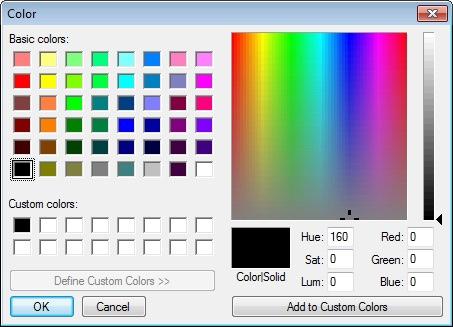
The color input type (Fig. 3.1; lines 20–21) enables the user to enter a color. Opera displays a color picker control that shows the default color (black) with a down arrow that, when clicked, shows a drop-down with 20 basic colors (Fig. 3.2). The user can select a color or click the Other... button to select from additional basic colors or create a custom color. At the time of this writing, most browsers render the color input type as a text field in which the user can enter a hexidecimal code.
Fig. 3.2 Inputting a color in Opera with a color picker control.
autofocus Attribute
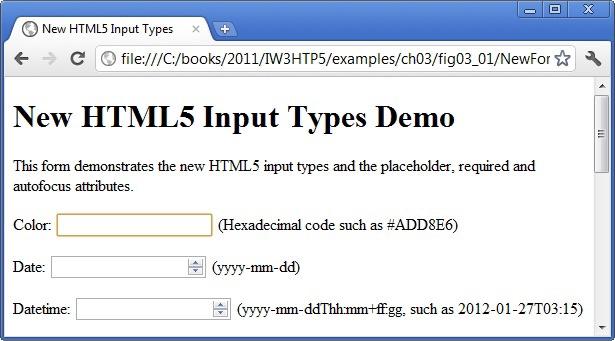
The autofocus attribute (Fig. 3.1; line 20)—an optional attribute that can be used in only one input element on a form—automatically gives the focus to the input element, allowing the user to begin typing in that element immediat. Figure 3.3 shows autofocus on the color element—the first input element in our form—as rendered in Chrome. You do not need to include autofocus in your forms.
Fig. 3.3 Autofocus in the color input element using Chrome.
Validation
Traditionally it's been difficult to validate user input, such as ensuring that an e-mail address, URL, date or time is entered in the proper format. The new HTML 5 input types are self validating on the client side, eliminating the need to add complicated JavaScript code to your web pages to validate user input, reducing the amount of invalid data submitted and consequently reducing Internet traffic between the server and the client to correct invalid input.
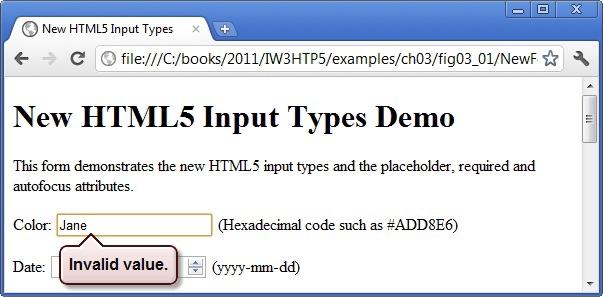
When a user enters data into a form then submits the form (in this example, by clicking the Submit button), the browser immediately checks the self-validating elements to ensure that the data is correct. For example, if a user enters an incorrect hexadecimal color value when using a browser that renders the color elements as a text field (e.g., Chrome), a callout pointing to the element will appear, indicating that an invalid value was entered (Fig. 3.4). Figure 3.5 lists each of the new HTML5 input types and provides examples of the proper formats required for each type of data to be valid.
Fig. 3.4 Validating a color input in Chrome.
input type Format
color Hexadecimal code
date yyyy-mm-dd
datetime yyyy-mm-dd
datetime-local yyyy-mm-ddThh:mm+ff:gg
month yyyy-mm
number Any numerical value.
email name@domain.com
url http://www.domainname.com
time hh:mm
week yyyy-Wnn
Fig. 3.5 Self-validating input types.
Apply appropriate markup to designate the "Input Type Color", "autofocus attribute", "Validation" as sections
Apply appropriate markup to apply headers to all sections.
Add the appropriate images for each figure (You may copy and save figures below).
Apply appropriate markup for figure captions.
Apply appropriate markup so that the "Validation" section has a table of Self-validating input types.
Figures to copy:
x Color Basic colors: Custom colors: LL Hue: 160 Red: 0 Sat: 0 Green: 0 Define Custom Colors >> Color Solid Lum: 0 Blue: 0 OK Cancel Add to Custom Colors x New HTML5 Input Types file:///C:/books/2011/IW3HTP5/examples/ch03/fig03_01/NewFor ? New HTML5 Input Types Demo This form demonstrates the new HTML5 input types and the placeholder, required and autofocus attributes. Color: (Hexadecimal code such as #ADD8E6) Date: (yyyy-mm-dd) Datetime: (yyyy-mm-ddThhmm+ffgg, such as 2012-01-27T03:15) X New HTML5 Input Types file:///C:/books/2011/1W3HTP5/examples/ch03/fig03_01/NewF New HTML5 Input Types Demo This form demonstrates the new HTML5 input types and the placeholder, required and autofocus attributes. Color: Jane (Hexadecimal code such as #ADD8E6) Date: Invalid value. (yyyy-mm-dd)









 Study Help