







Question: Step 2: Assign an IP address to yours PCs using the details listed on the visual topology diagram shown above. The PC should be fitted
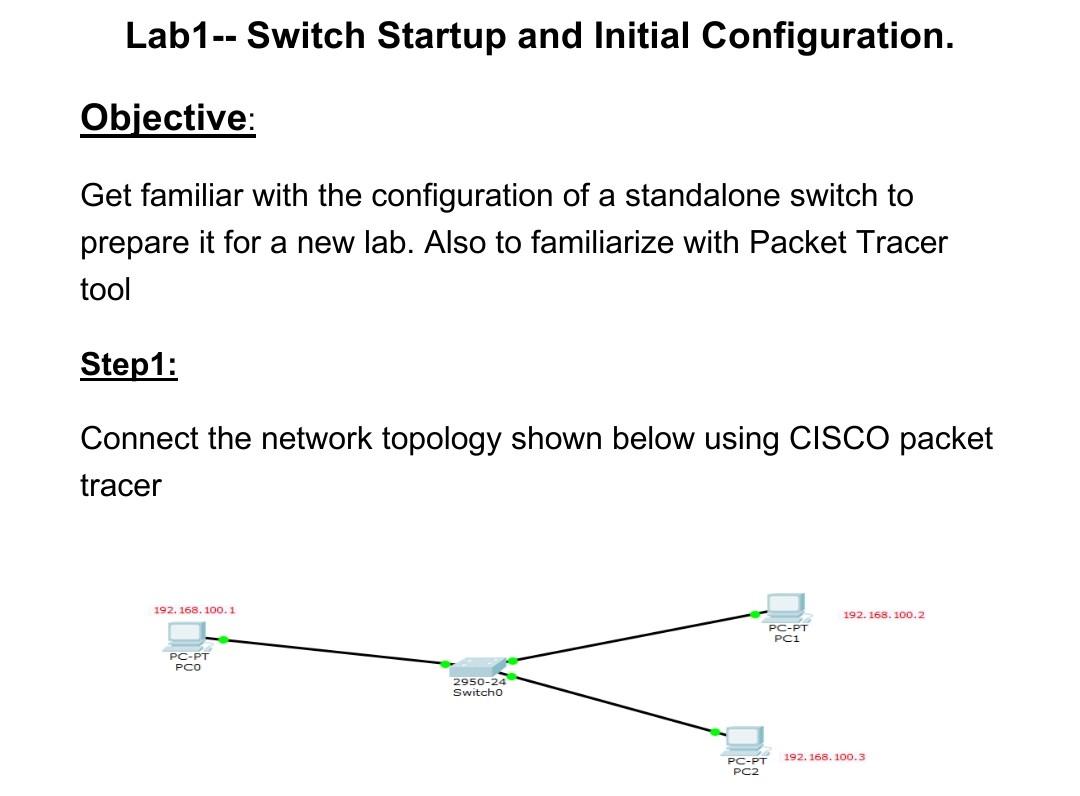
Step 2: Assign an IP address to yours PCs using the details listed on the visual topology diagram shown above. The PC should be fitted with two network adapters check with the instructor if you are unsure which network adapter should be configured. You are expected to use (FastEthernet) Step 3: Check the connection in whole network Step4: Enter in the console (CLI) of the switch and write these lines of commands. Then describe briefly what are the benefits of each command >enable #show running-config .. #show ip interface brief ... #show ip route . Step5: differentiate between different modes > (Global mode) # (Privilege mode) (config)# (Global Configuration)
Lab1 -- Switch Startup and Initial Configuration. Objective: Get familiar with the configuration of a standalone switch to prepare it for a new lab. Also to familiarize with Packet Tracer tool Step1: Connect the network topology shown below using CISCO packet tracer 192.168.100.1 192.168.100.2 PC-PT PC1 PC-PT PCO 2950-24 Switcho PC-PT 192.168.100.3 PC2
Step by Step Solution
There are 3 Steps involved in it

Get step-by-step solutions from verified subject matter experts
 Study Help